Queues and Queue Groups
Access Queue Management from the homepage from the Global Navigation Menu, or from the following cards, Contact Centre Management > Queue Management
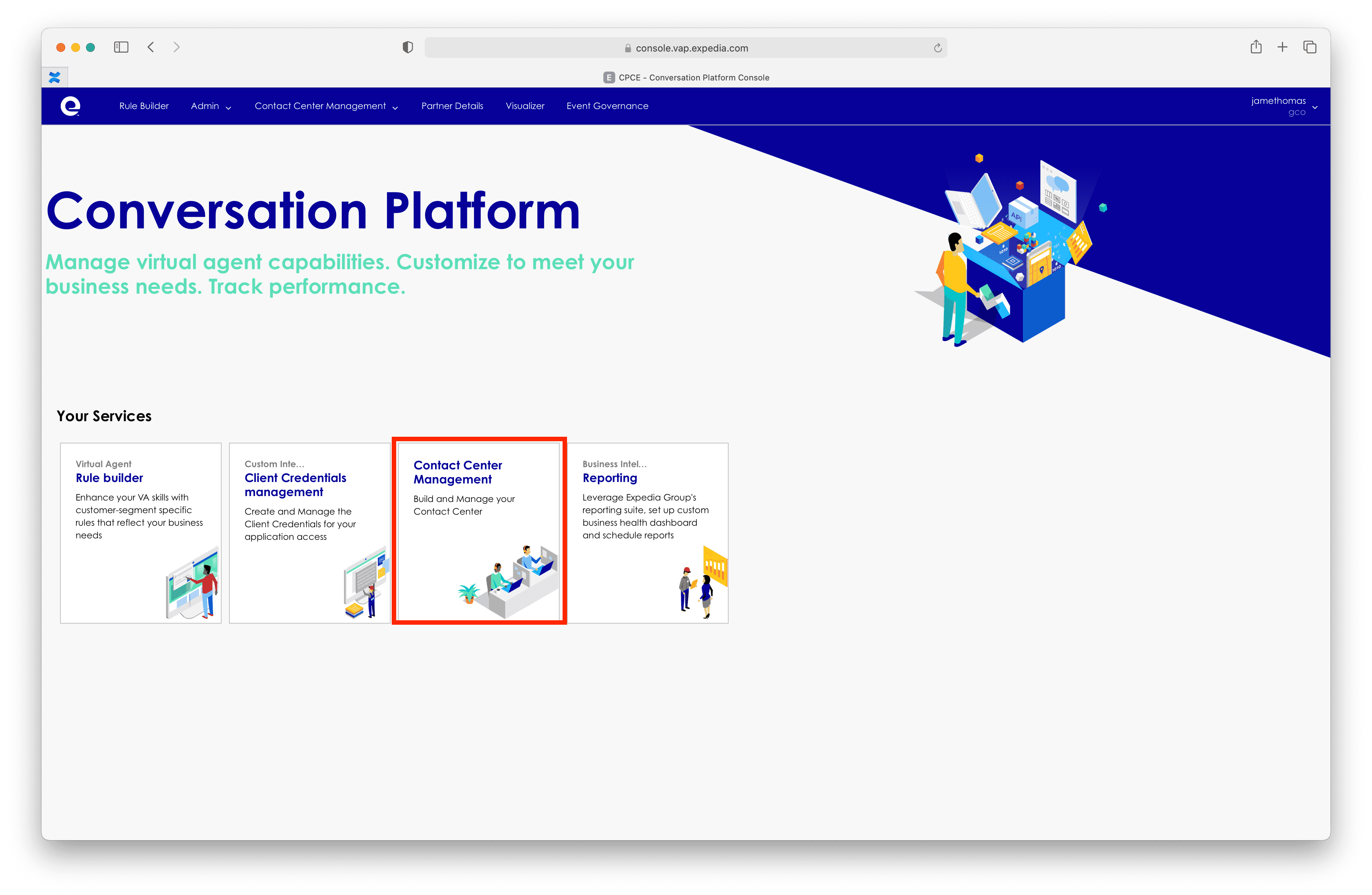
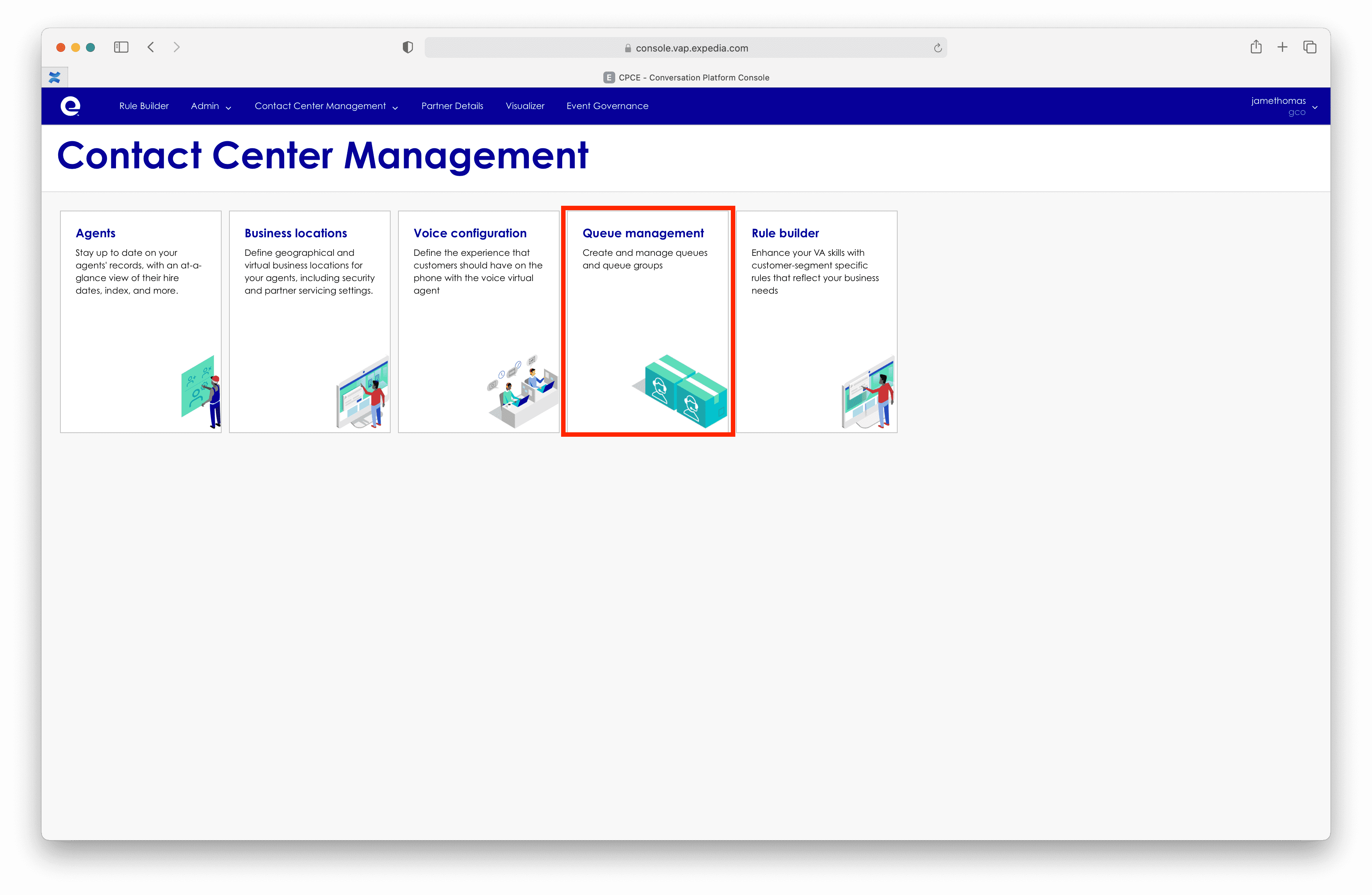
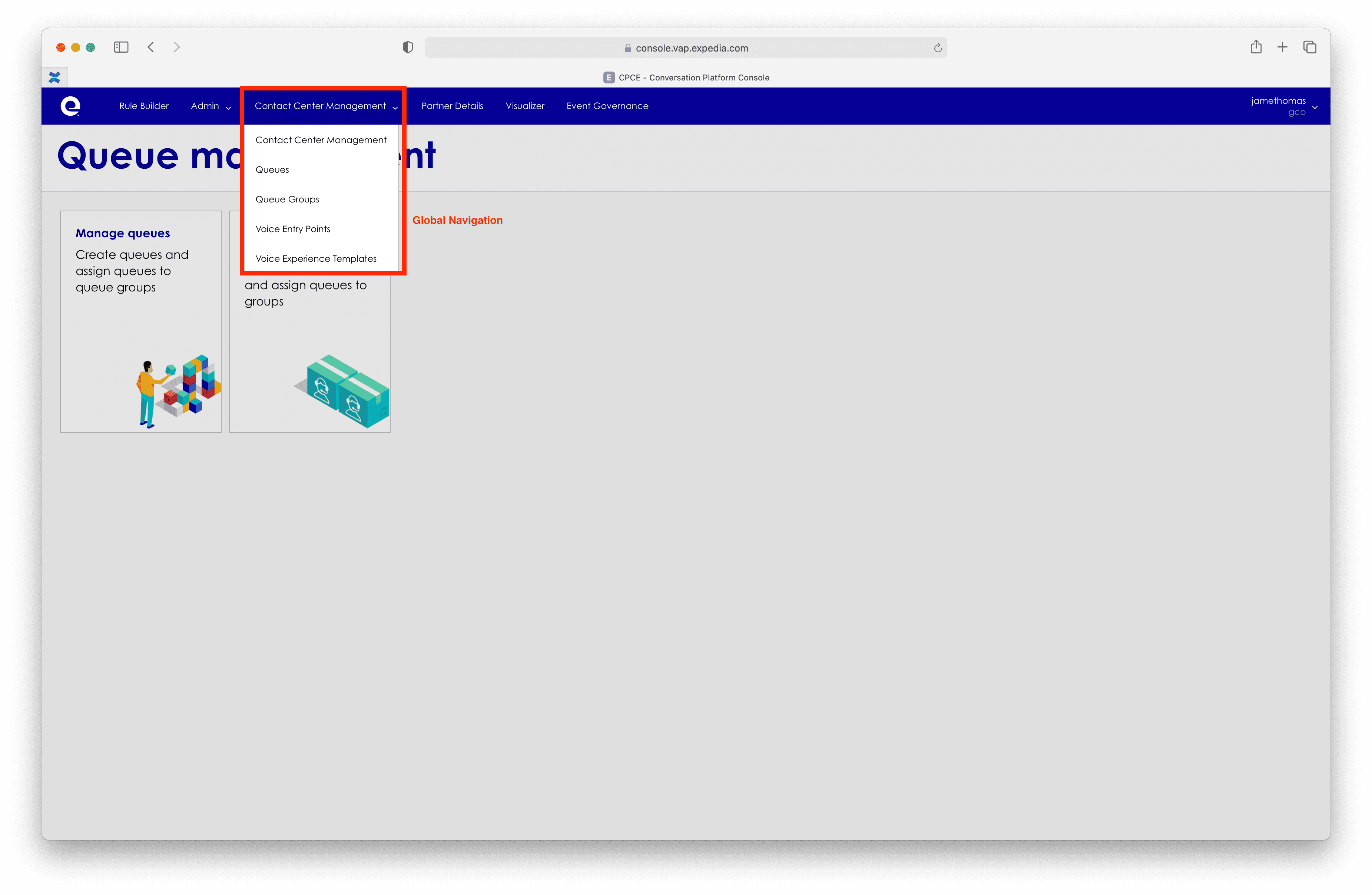
This will take you to a sub menu that allows you to choose between accessing Queues or Queue Groups
Create a Queue
Selecting Manage Queue will bring you to the Queue Management screen, here you will see all of the queues that have been configured for your CCaaS Partner
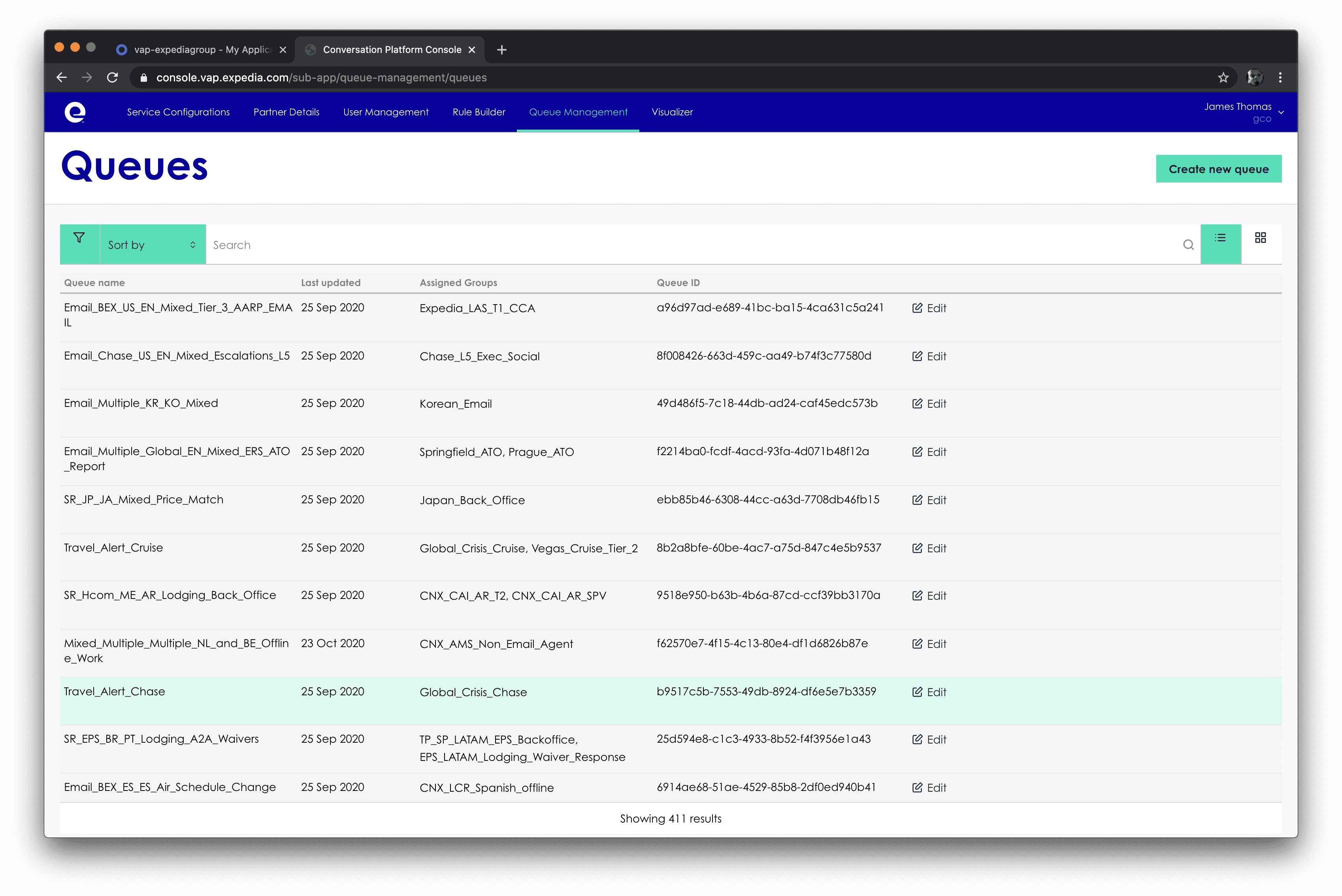
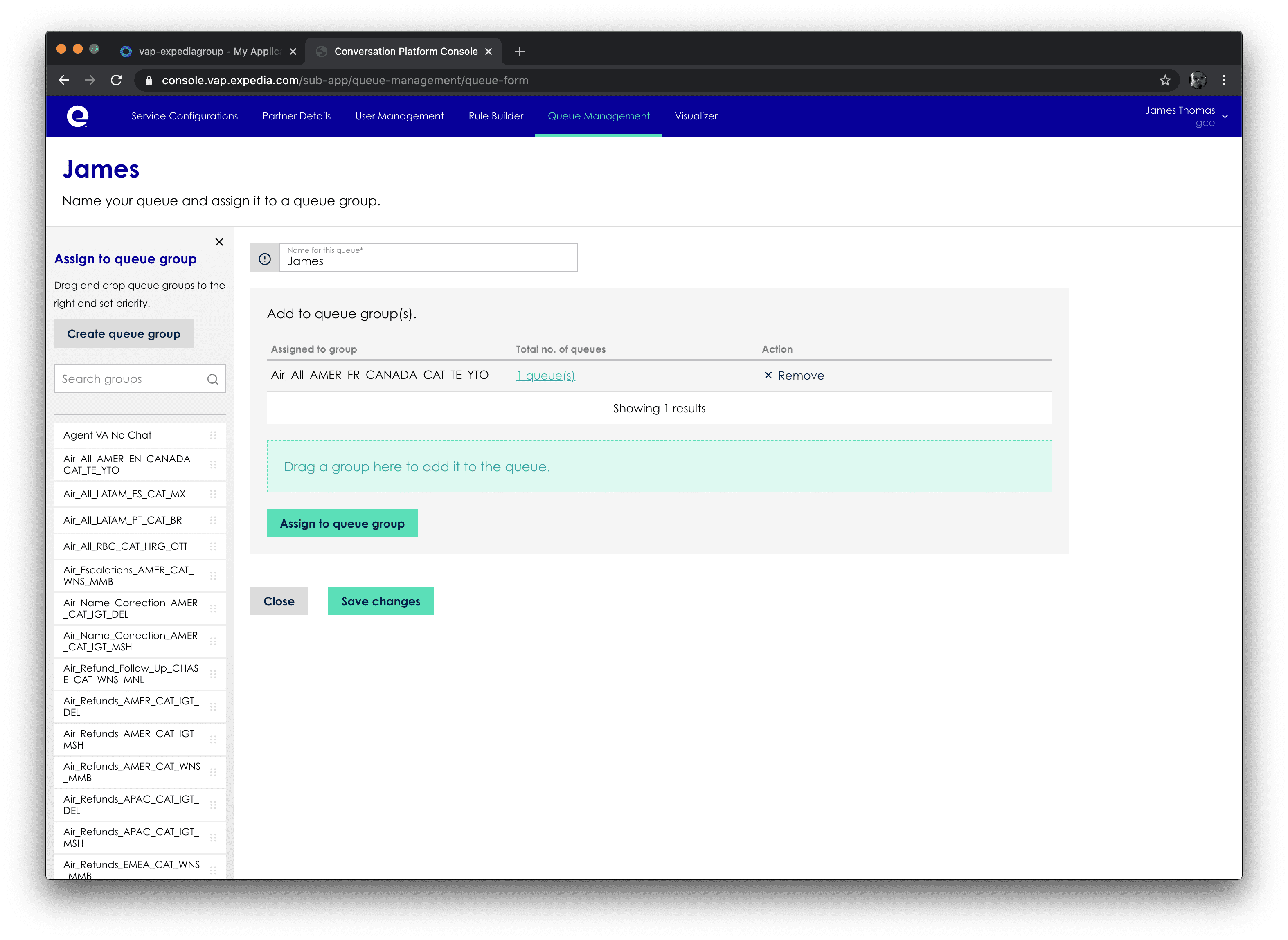 Click Create new queue to add a new queue
- Give your Queue a name that works for your business, we recommend using a taxonomy that works for your business, this will help with finding queues when there are many configured for example for a queue that services US English customers for customer service you may want to use something like: ENUSService.
- If you have already created Queue Groups you can click on the assign Queue Groups button to reveal that list of Queue Groups, then you can drag the queue groups across that you want this queue to be a member of.
- Click Save changes to save this configuration, once you have returned to the list view for queues the queues are available for adding to, Speed dials, Routing Rules HOO Rules and Queue Groups
Create a Queue Group
Selecting Queue Group Management card from the sub-menu will take you to a list view of all configured queue groups. Click on Edit to open up a queue group and see its configuration.Click Add new queue group
- Give the queue group a name - (no special characters or spaces)
- Click Assign queue to open the list view of queues