Console User Management
Console user management is designed for creating non-Contact Centre users, i.e. not agents or supervisors—which should be done in the Agents area within the Contact Center Management application.
Create Console Users
IMPORTANT: Accounts using federation for access such as Okta must be assigned to a security group before they can be added via the Console. From the global navigation bar in the page header, select Admin > Console Users.

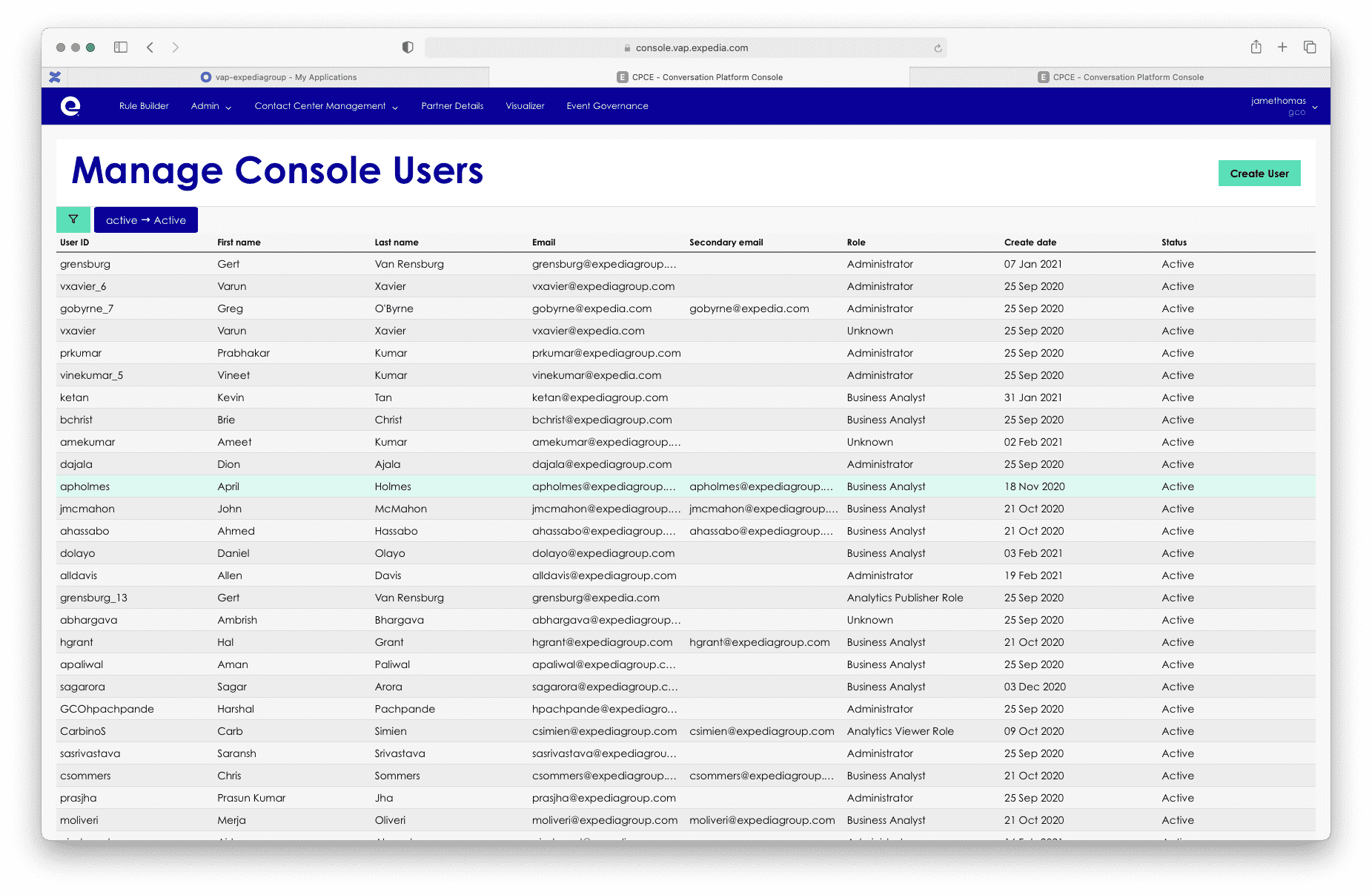
The Manage Console Users list view opens and displays all configured users for a Partner.
To create a user account:
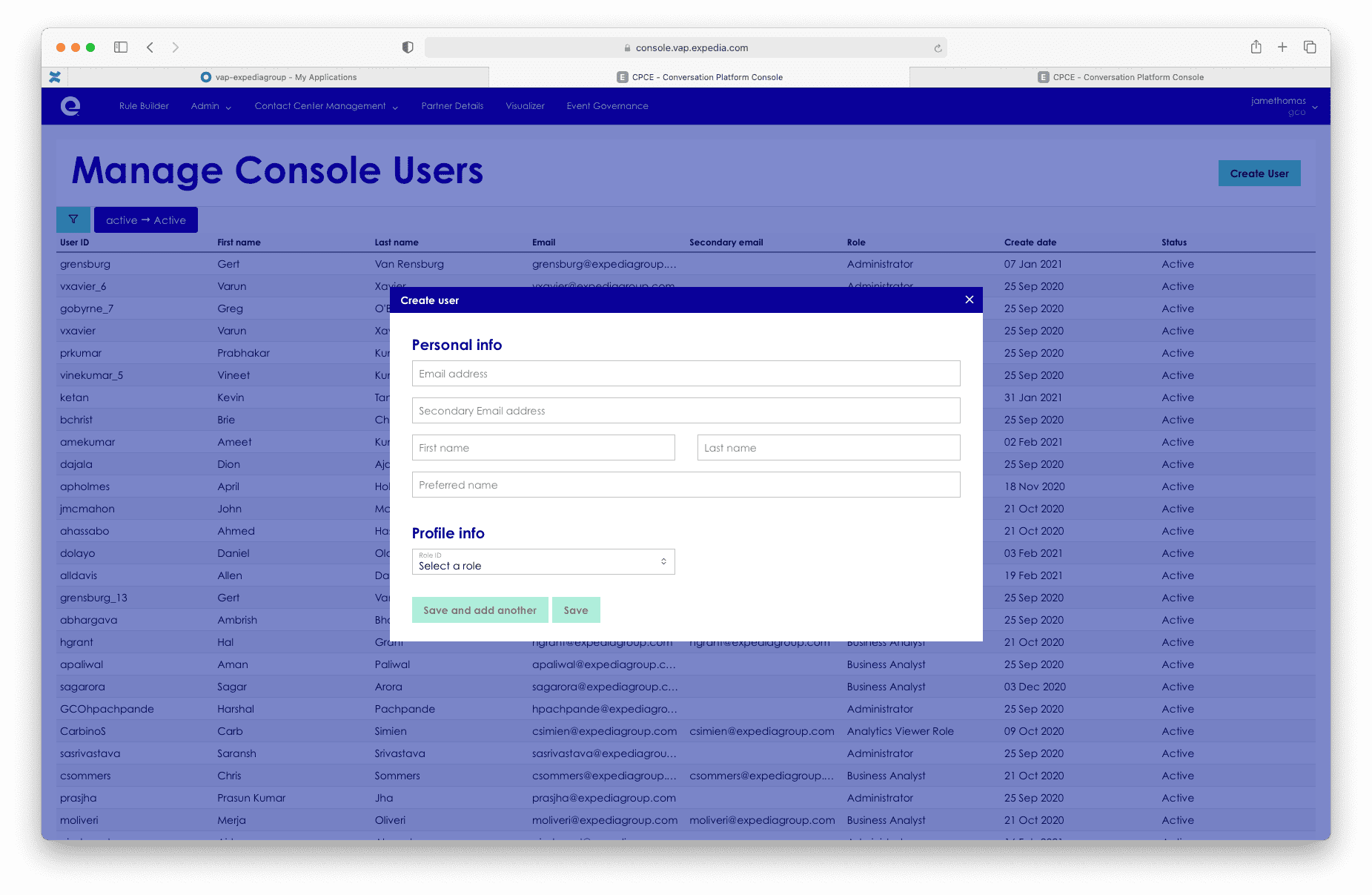
- Select Create User from the button in the top right hand corner above the list view, this will open the create user window.
- Complete the fields in view, e-mail address is required, secondary e-mail address is not required, this is for test account purposes.
- Select a role from the list, here choose from default roles such as Administrator or custom roles that have been created for the partner.
- Select Save or Save and add another the window will close and the list view will refresh to show the user account created.
Update Console Users
- Select the user account by clicking on the row.
- This will open the User details window, here you can change all the fields.
- Select Update to save and close the window.

Deactivate a User
- To deactivate a user follow the steps for update.
- Once the window is open, move the Profile Status toggle to a deactivated state.
- To save the changes click Update this will close the window and return you to the list view.
- Once this is done the agent will disappear from the list view unless you have updated the filter to show Active and Inactive users.
Note: Deactivating the user here does not deactivate the Active Directory account if using account federation, it will only prevent access to Conversation Platform applications.