Logging in using Okta
Step 1
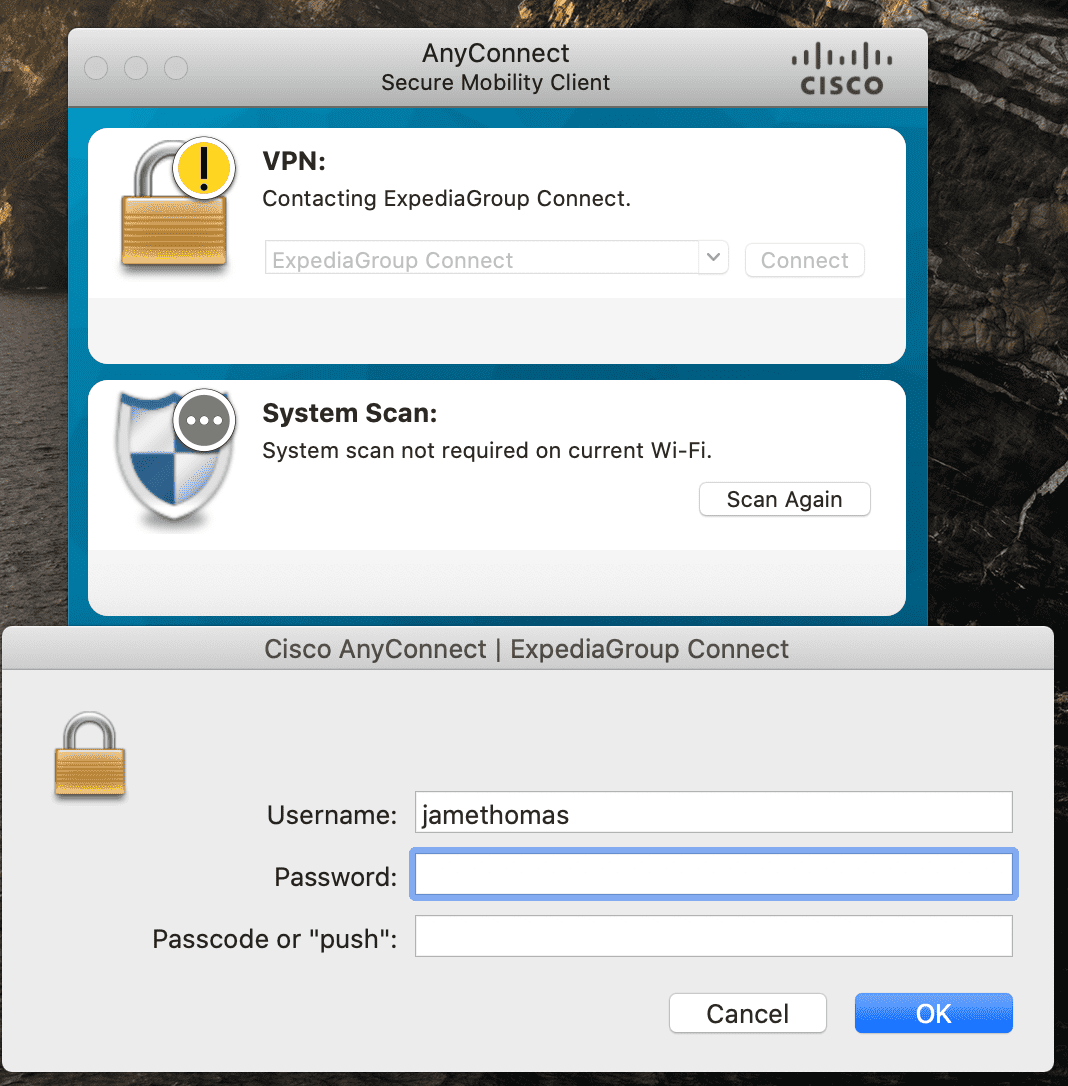
- Turn on VPN - login to Cisco Anyconnect VPN.
Step 2
- Open your favoured browser and navigate to the CP Okta Tenant
- VAP production
- VAP Sandbox or INT - Enter your full e-mail address including the "@expediagroup.com" domain. Click "Next".
- You are redirected to the Expedia Group Okta login page. If you are already logged in to Okta for EG you will go directly to the VAP Dashboard, where you will see a link to the console.
- If you are not logged in to the EG Okta, you will be prompted to do this before being redirected to the Dashboard.
Step 3
-
Click on the Console button in the dashboard and you will be directed to the console home page, and here you will see a number of tiles that will allow you to access the features outlined in this document.
Features
'- Because we are still not off CCT, when the Console logs you out after a period of inactivity you will receive a message and a button to log back in.
- This will direct you to the CCT login screen for Console, adding your Okta credentials here will fail to log you back in, you will need to go back to the VAP tenant Okta tab in your browser and click the Console button from there. This problem will go away when we deprecate CCT login.

- If you login without VPN on you may be prompted to set up MFA for the VAP Okta Tenant in addition to the one you already have for EG, it's recommended to always access with your VPN on.
- The additional step will be removed soon, as there is a request with eIT to have it disabled.