Bulk Upload Voice Entry Points
Applies to
- CCaaS Admin Role
Overview
Define your customers’ voice experience with the Conversation Platform Console by creating multiple new entry points for telephone numbers and voice assistants all at once.
Bulk Upload multiple voice entry points
First login to CCM Console
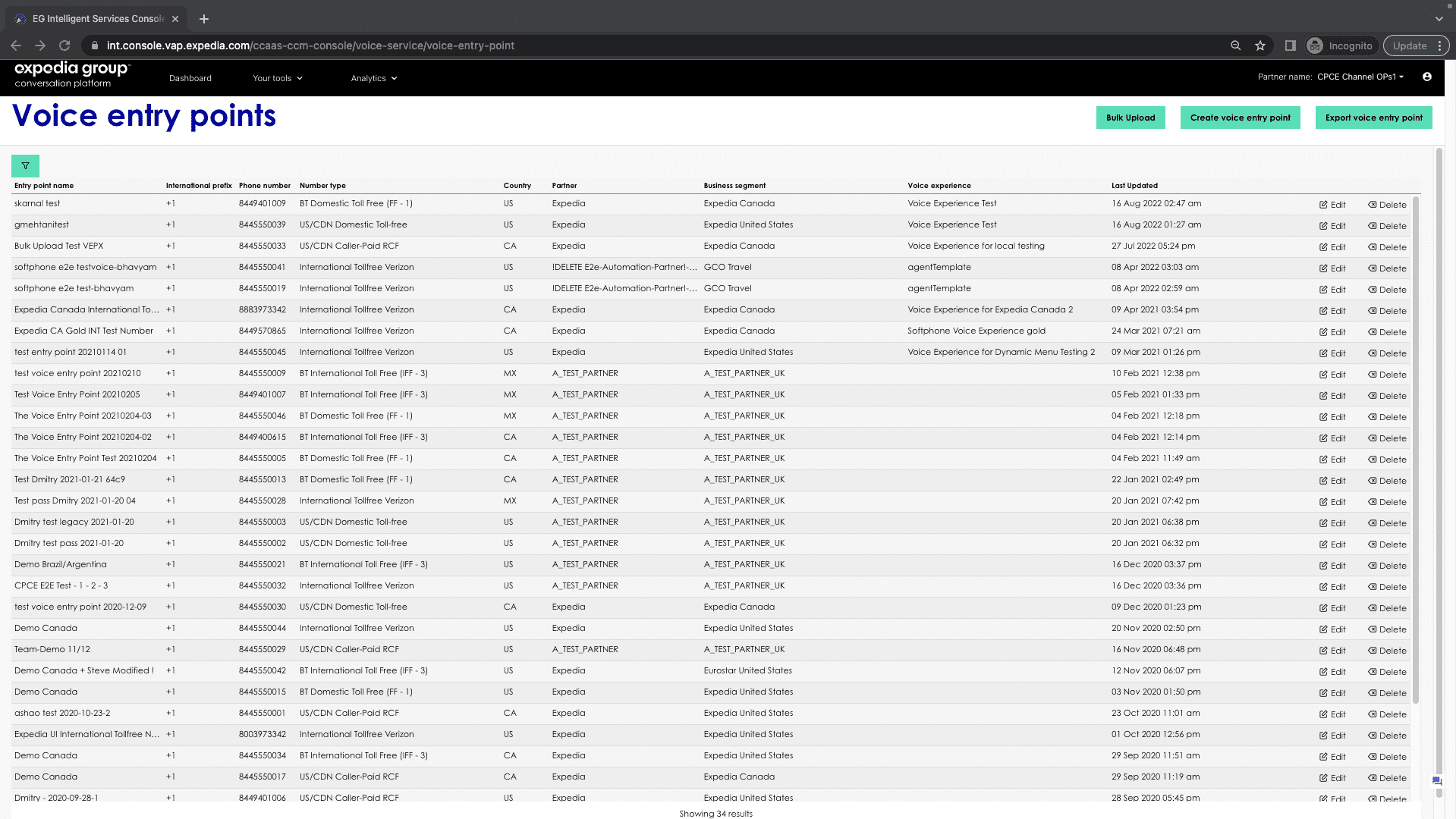
- Once logged in, go to Contact Center Management > Voice configuration > Voice entry point.

- Click on Bulk Upload button in the top right-hand corner of the list view to open the Bulk Upload form.

- Download the CSV Template for bulk upload process or click Skip if you have it already.
- Enter the email and click on Continue to Upload.

- Fill in values in your csv file to upload
- To upload your csv file, click Browse, or drag and drop the csv template to the rectangular box. Then click Upload button.

- Once uploaded successfully, you will be prompted with upload succeeded message.