Rule Builder for Queue Wait Time
This tutorial explains how to manage the Queue Wait Time configuration for a particular channel of a partner. This configuration rule is used by the Intelligent Contact Distribution capability to configure the queue wait time threshold point at which a customer is sent to a specific channel. We use the Rule Builder capability to configure our Queue Wait Time rules.
The Rule Builder for Queue Wait Time consists of the following 3 components:
1. Queue Wait Time Rule
These are the actual rules that allow you to create the custom experience. A rule consists of the following components:
- Rule Name
- Rule Description
- Rule Conditions: The conditional formula that is executed as part of the rule. This is essentially an IF statement. The conditions that show up here depend on the rule template the rule is based on. For each rule condition, you select the specific operator that you want and then provide the values that are related to this operator.
- Rule Outcome: There is a pre-defined set of tasks that can be selected for this rule's outcome, based on how the template was set up. This outcome is essentially the result of the rule - if the incoming request meets every criteria set by this rule, the rule outcome defines what behavior the customer should experience. The rule outcome for the Queue Wait Time consists of the channel to which the customer should be deflected.
- Effective Date Range: Defines the date range during which the rule is active. If left blank, the rule is always active.
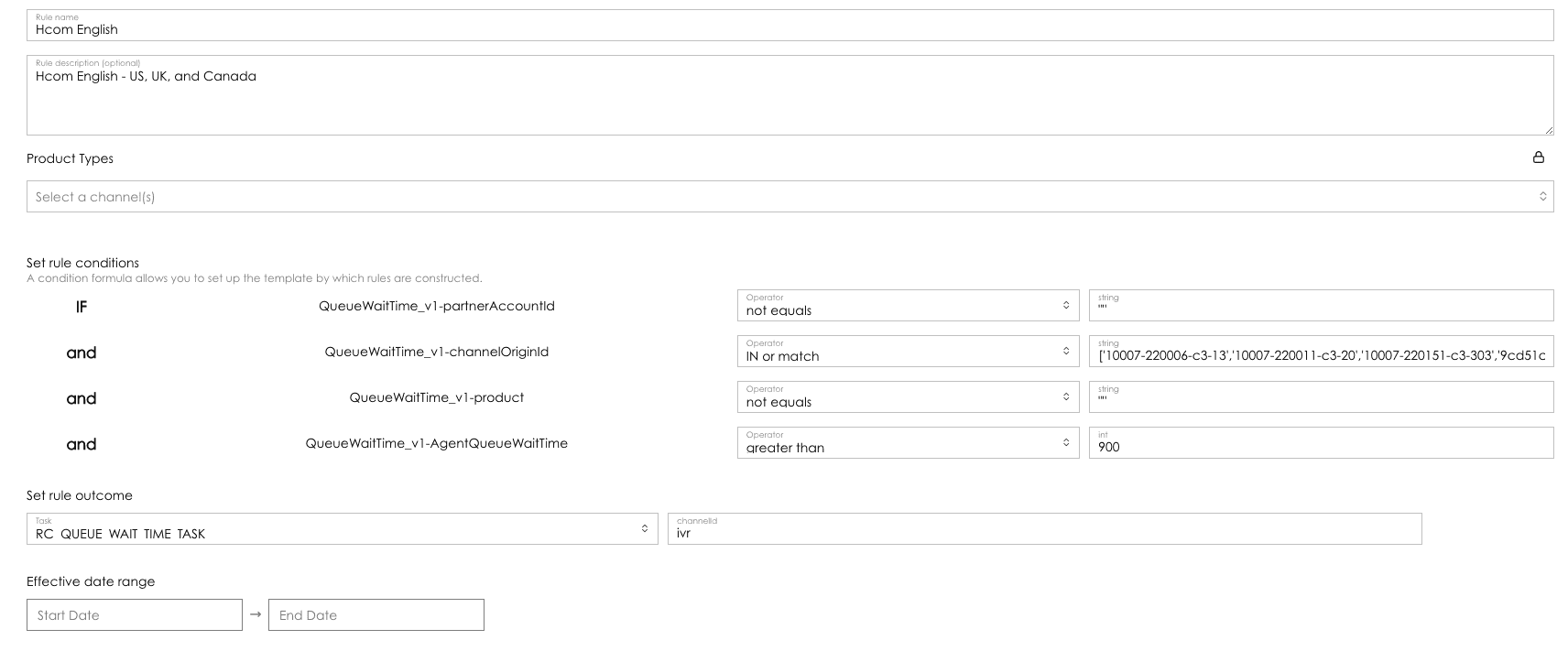
For example, now let's see a filled-out version of a full-fledged Queue Wait Time rule. This is the configured Queue Wait Time rule for Hcom English: This rule has been provided with a name, a description, the rule conditions, and the outcome. This rule is triggered if it has:
- A partner ID (any partner ID)
- A channel origin ID of '10004-220037-c3-80' or '2e185087-1f22-471f-a1b6-66d8982e82fe'
- A product (any product, it doesn't matter which)
- QueueWaitTime > 900 seconds
2. Queue Wait Time Rule Template
Rule Templates provide the base rule design from which you can build rules There are two types of templates namely System Templates and Custom templates. A rule template consists of the following components:
- Template Name
- Template Description
- Rule Conditions: This sets the format and structure of the rule condition. It includes all the different business object fields, their data types and how the fields operate with each other.
- Rule Outcome: This is similar to the rule outcome. Allows for it to be set at the template level and be locked so that all rules created using this template must have the outcome defined in the template.
- Effective Date Range: Defines the date range during which the template is active. If left blank, the template is always active.
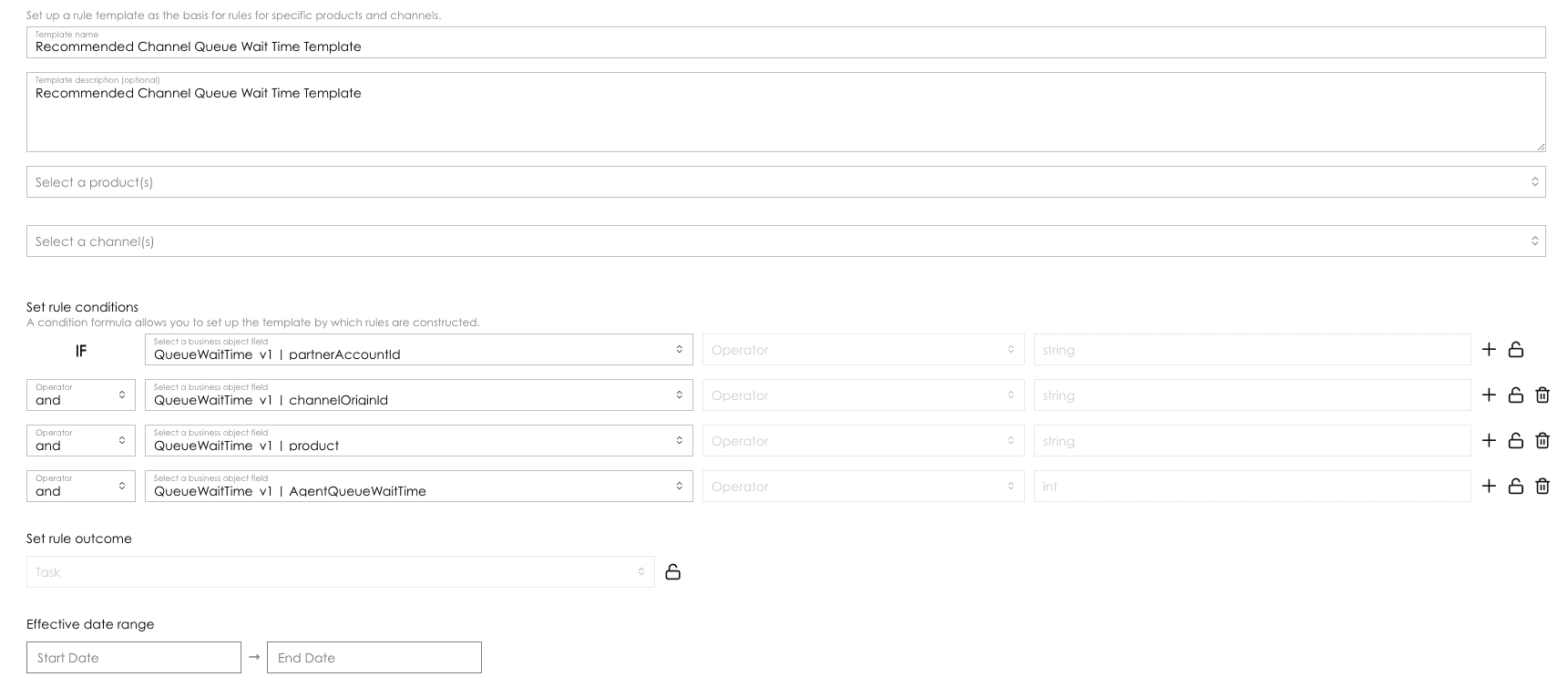
Below is an example of an Hours of Operation Rule Template. This rule has been provided with a name, a description and 4 rule conditions with each rule condition involving a business object field. And as we can see, the operator between the rule conditions is an 'and', which means that it only applies if all of its conditions are satisfied.
3. Queue Wait Time Policy
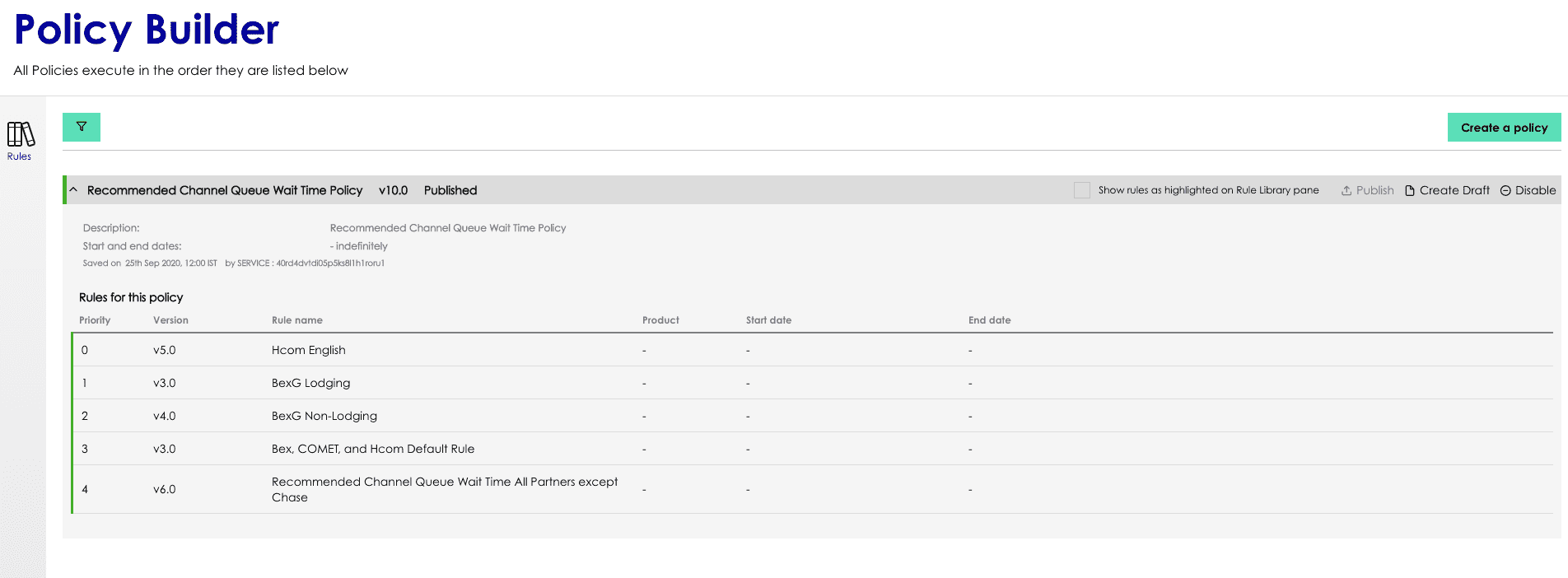
Rules do not exist in a vacuum - they exist in constructs called policies that must also be manually put together. A policy defines a set of rules and the order in which those rules are executed. Each time the policy is triggered, the conversation checks one rule after another until it meets the criteria associated with that rule.
Policies consist of:
- Policy Name
- Policy Description
- Effective Date Range: Defines the date range during which the policy is active. If left blank, the template is always active.
- Rules for this policy: Consists of the rules in this policy along with their priority and version.
For example, below is the policy for Hours of Operation
Every conversation that comes in first looks at the BEX UK Non Lodging Hours of Operation. If the rule conditions are met, the process ends. If it does not match, it next looks at the second rule - BEX US Lodging Hours Of operation. If this matches, it stops. If not, it goes to the third rule, and so on.
Creating Queue Wait Time Rules
- From the Admin Console Home page, click on Rule Builder.
- Click on Rule Library in the following page.
- Choose Queue Wait Time from the drop down at the top left hand.
- Expand the NO PRODUCT TYPE List. This shows you all the available Hours Of Operation Rule Templates.
- Click the Rule Template that you want the rule to be based on. This shows all the rules built on this template.
- Click the Create a Rule button.
- Provide a name and description.
- Fill in the operator and the value for each of the rule conditions.
- Choose the rule outcome as RC QUEUE WAIt TIME TASK.
- Fill in the value of the channel ID that you want to deflect to.
- If you need the rule to be active only for a particular date range, choose the date range. If not leave it blank.
- Click on Create.
- The rule now appears on the page with a status of Draft.
- Click on Publish to publish the rule. The rule is not triggered at runtime until it is published. Once it is published, the Status appears as Published.
Updating Queue Wait Time Rules
- Repeat Steps 1 - 5 listed in Hours of Operation Rule Creation.
- Choose the Rule Template that the rule you would like to update was created upon.
- Once you find the rule, Click on 'Create Draft'.
- Update the fields you would like to change and Click the 'Update Button'.
- The rule now appears on the page with a status of Draft.
- Click on Publish to publish the rule. The rule is not triggered at run time until it is published. Once it is published, the Status appears as Published.
Disabling of Queue Wait Time Rules
- Repeat Steps 1-5 listed in Hours of Operation Creation.
- Choose the Rule Template that the rule you would like to disable was created upon.
- Once you find the rule click on Disable.
Creating a Queue Wait Time Template
- From the Admin Console Home page, click on Rule Builder.
- Click on Rule Templates in the following page.
- Choose Throttling from the drop down at the top left hand.
- Click on 'create new rule template'.
- Provide a name and description.
-
For set Rule Conditions:
- Add as many rule conditions as needed by clicking the '+' sign.
- For each rule condition, select the business object field and enter 'string' in value type.
- Choose the 'and' / 'or' operator between the rule conditions.
- Choose a Effective date range, if applicable.
- Click on Create.
Updating a Queue Wait Time Template
- Repeat Steps 1 - 3 listed in Creating a channel throttling template.
- Click on Rule Templates in the following page.
- Choose Throttling from the drop down at the top left hand.
- Click Edit for the Template you want to edit.
- Update the fields you would like to change and Click the 'Update Button'.
Creating a Queue Wait Time Policy
- From the Admin Console Home page, click on Rule Builder.
- Click on Queue Wait Time Policies in the next page.
- Click on 'create a policy'.
- Provide a name and description.
- Choose a Effective date range if applicable.
- Click on Save.

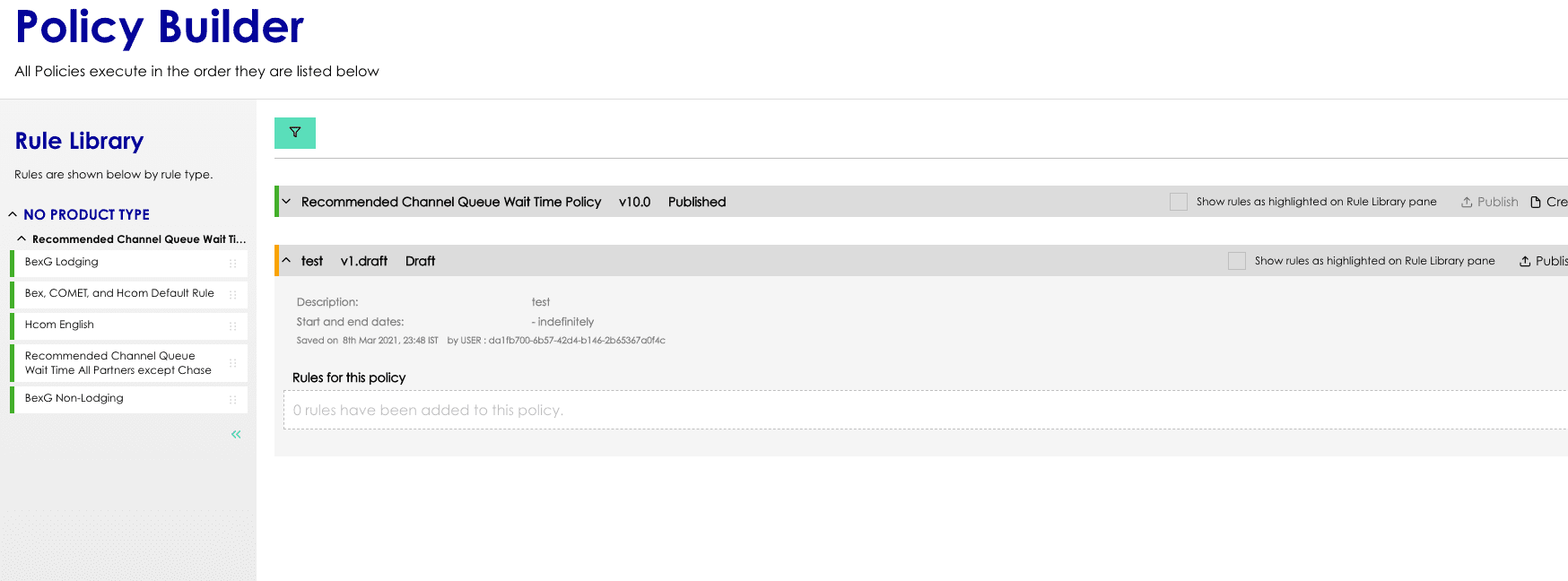
- The policy is now created. You now have to add rules to it.
- Expand the policy and you can now drag rules from the left hand column to the policy.
- The priority value dictates the order in which the rules would be looked at.
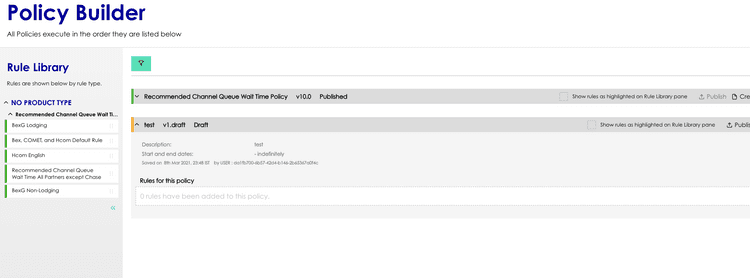
- Once you have added the rules to the policy, click on Publish.

Updating a Queue Wait Time Policy
- From the Admin Console Home page, click on Rule Builder.
- Click on Queue Wait Time Policies in the following page.
- Find the Policy you want to update and click on 'Create Draft'.
- Update the fields as needed.
- Click on Update.
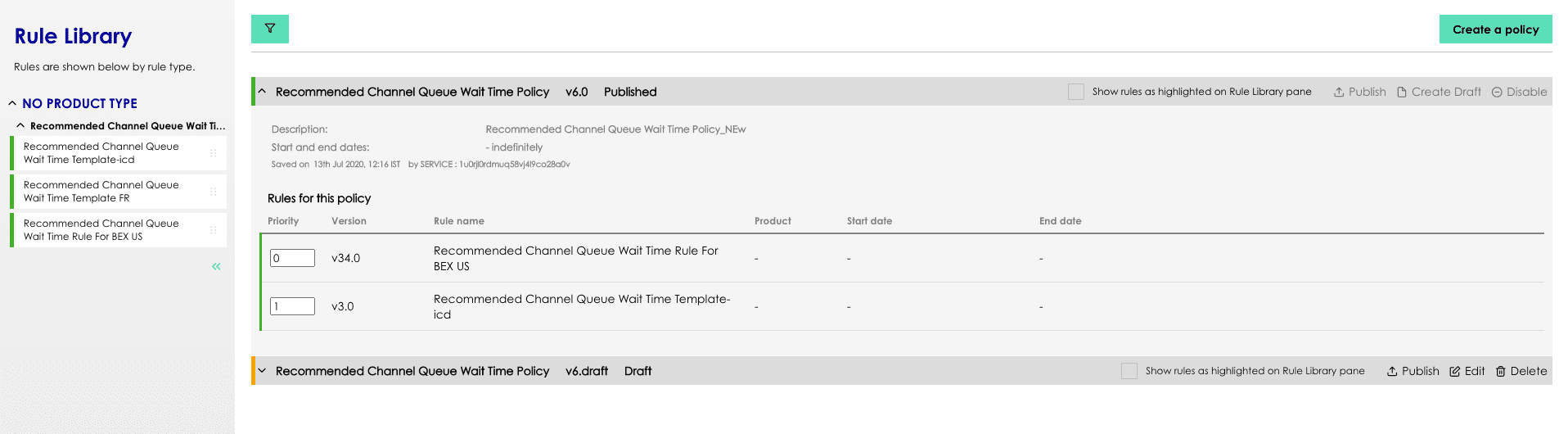
- You can now see the draft version of the policy right below the Published version.
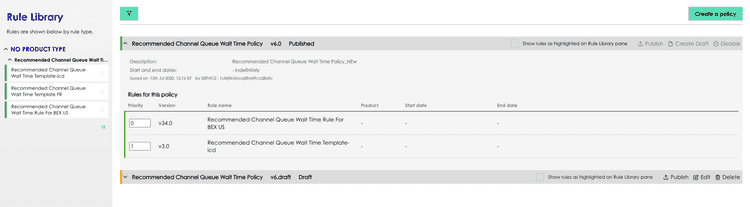
- Expand the policy and you can now drag rules from the left hand column to the policy.
- The priority value dictates the order in which the rules would be looked at.
- Once you have added the rules to the policy, Click on Publish.
Deleting/Disabling an Hours of Operation Policy
- From the Admin Console Home page, click on Rule Builder.
- Click on Queue Wait Time Policies in the following page.
- Find the Policy you want to update and click on 'Delete'.