Queue and Queue Groups
Applies to
- CCaaS Admin Role
Overview
Queues and Queue groups are the entities that ultimately route customer conversations delivering them to agent resources via Softphone or Chat functionality in Voyager Next.
- Each agent belongs to a particular queue and a Queue Group consists of multiple Queues.
- Queue and Queue Groups are mainly for routing purpose whenever a user's call comes it will try to route that call to the right agent with the help of the queue groups defined and on the availability of the agent.
Key Concepts
- Queue - a vector that is used to queue customer conversation requests.
- Queue Group - a group of queues to facilitate assigning queue(s) to the agent(s).
You can manage queues and queue groups using the options from the Contact Center Management > Routing, business hours, and queues card.
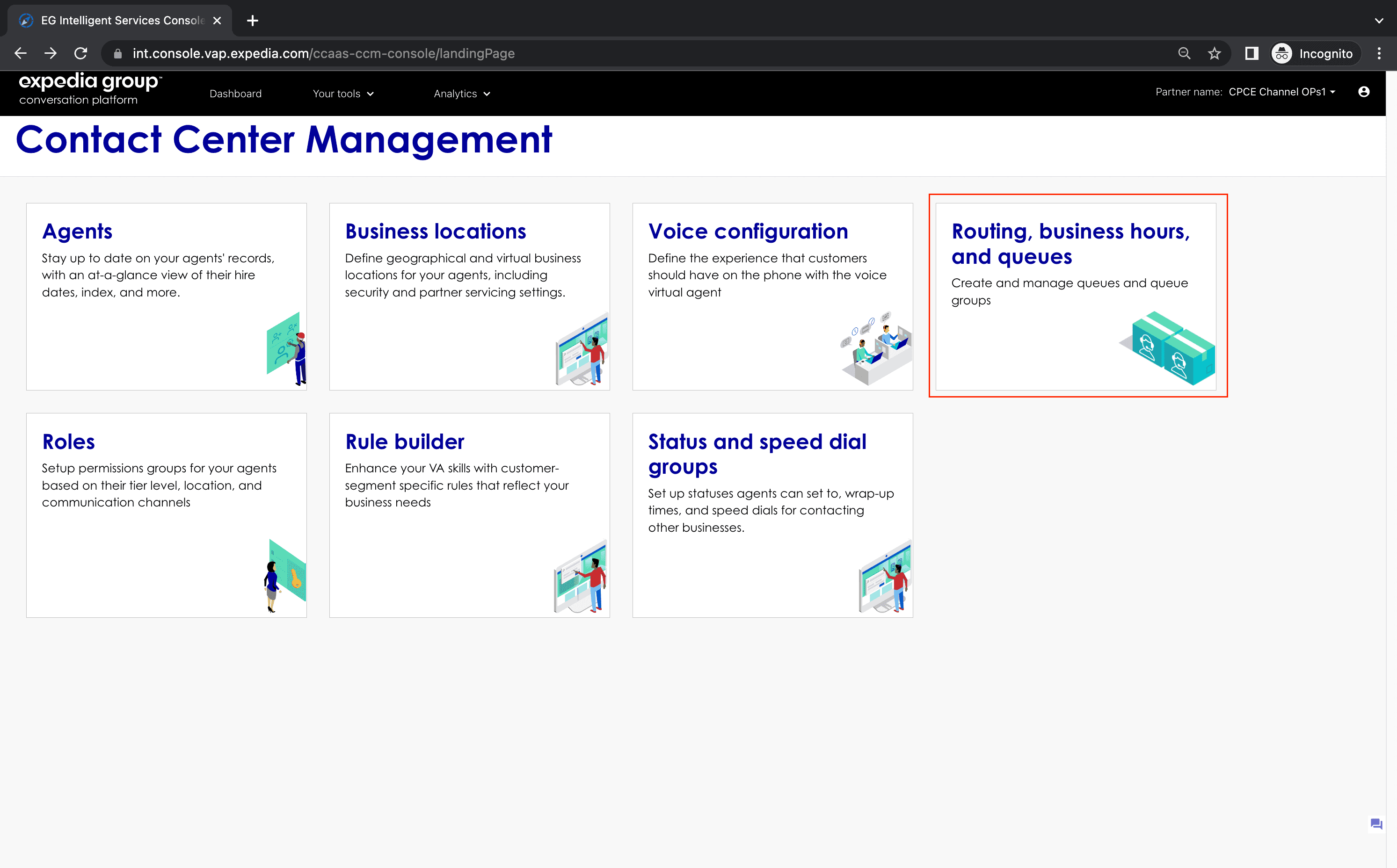
After clicking on the Routing, business hours, and queues card, you will see the following Manage queues and Manage queue groups cards. These cards allow you to manage queues and queue groups respectively.

Open Queue Management page
To access queue group management page, select Contact Center Management > Manage queues:
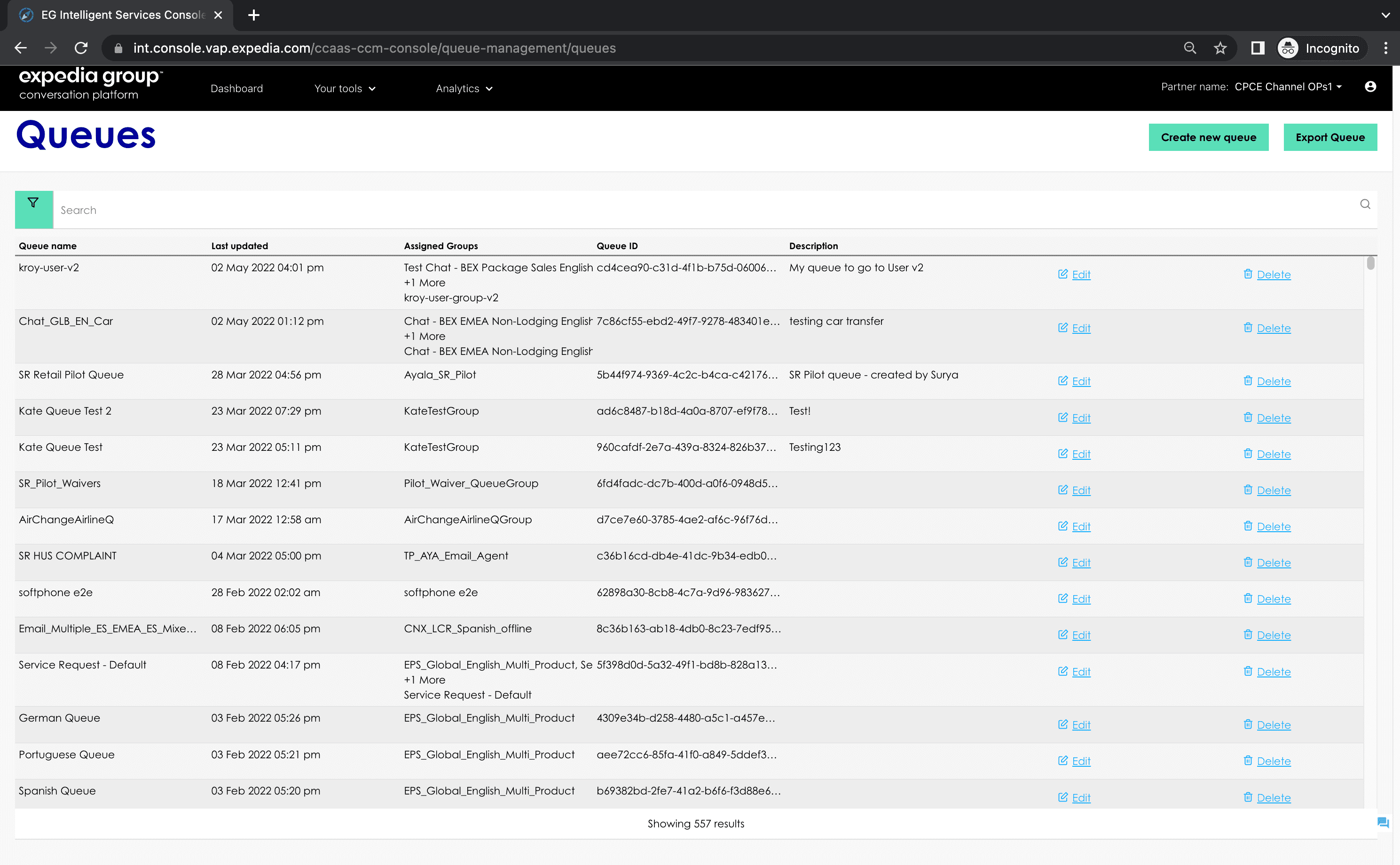
Selecting Manage queues card will bring you to the Queue Group Management screen, here you will see all queues that have been configured for your CCaaS Partner
Creating a Queue
First login to CCM Console
There are 2 ways to create a queue:
-
If you want to create a queue while you are on the Manage queues page:
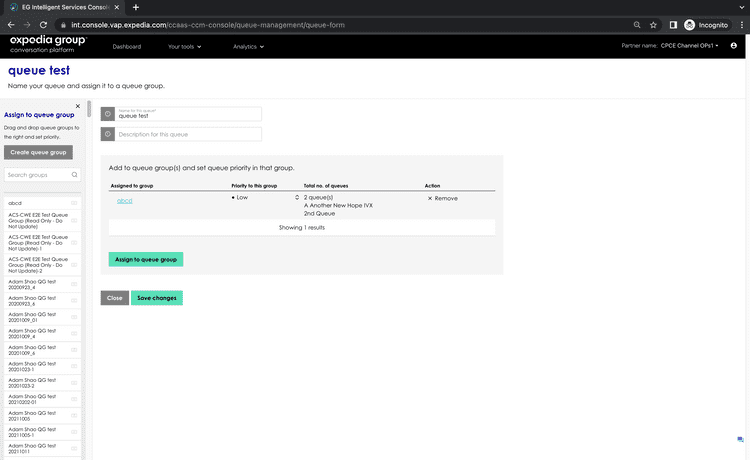
- Click the Create new queue button in the top-right corner. This will open the create queue page:
- Give your Queue a name that works for your business, we recommend using a taxonomy that works for your business, this will help with finding queues when there are many configured for example for a queue that services US English customers for customer service you may want to use something like: ENUSService.
- If you have already created Queue Groups you can click on the assign Queue Groups button to reveal that list of Queue Groups, then you can drag the queue groups across that you want this queue to be a member of.
- Click Save changes.
-
If you want to create a queue while you are creating a queue group(see Creating a Queue Group steps):
- Click the Assign queue button to bring out the "Assign queue" side bar.
- Click the Create queue button in the sidebar.
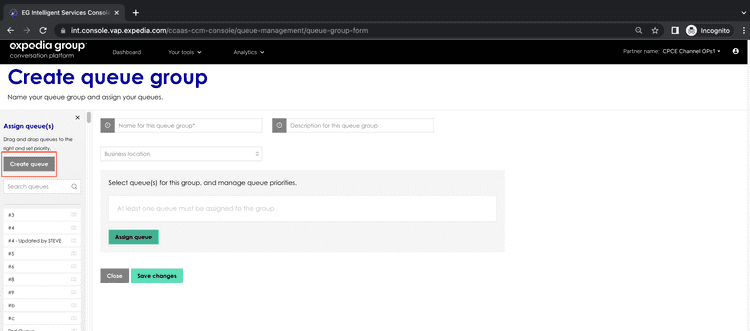
-
As you type the queue name, similar existing queue names will appear in the dropdown menu:
- If you found there is an existing queue that matches your requirements, just click on that queue name and continue. The queue will be selected to be assigned to the queue group you are creating.
- If you still want to create a new queue, simply ignore the dropdown and continue. Then a new queue will be created and selected to be assigned to the queue group you are creating.

Editing an existing queue
Click the Edit button at the right of Queue Table on a Table View.
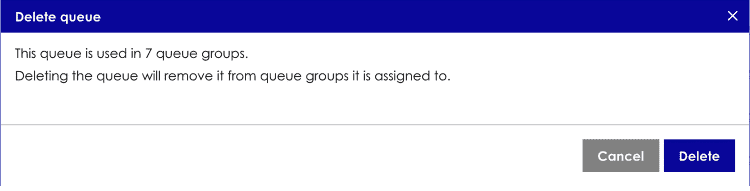
Deleting an existing queue
Click the Delete button at the right of Queue Table on a Table View.
Note: when deleting a queue that is assigned to one or multiple queue groups, the queue will be removed from those queue groups.
Open Queue Group Management page
To access queue management page, select Contact Center Management > Manage queue groups:
Selecting Manage queue groups card from the sub-menu will take you to a list view of all configured queue groups.

Creating a Queue Group
First login to CCM Console
There are 2 ways to create a queue group:
-
If you want to create a queue group while you are on the Manage queue groups page:
- Click the Create new queue group button in the top-right corner.
- Fill out queue group name, business locations and drag queues you want to assign to this queue group. Create the queue if needed.
- Click the Save changes button
-
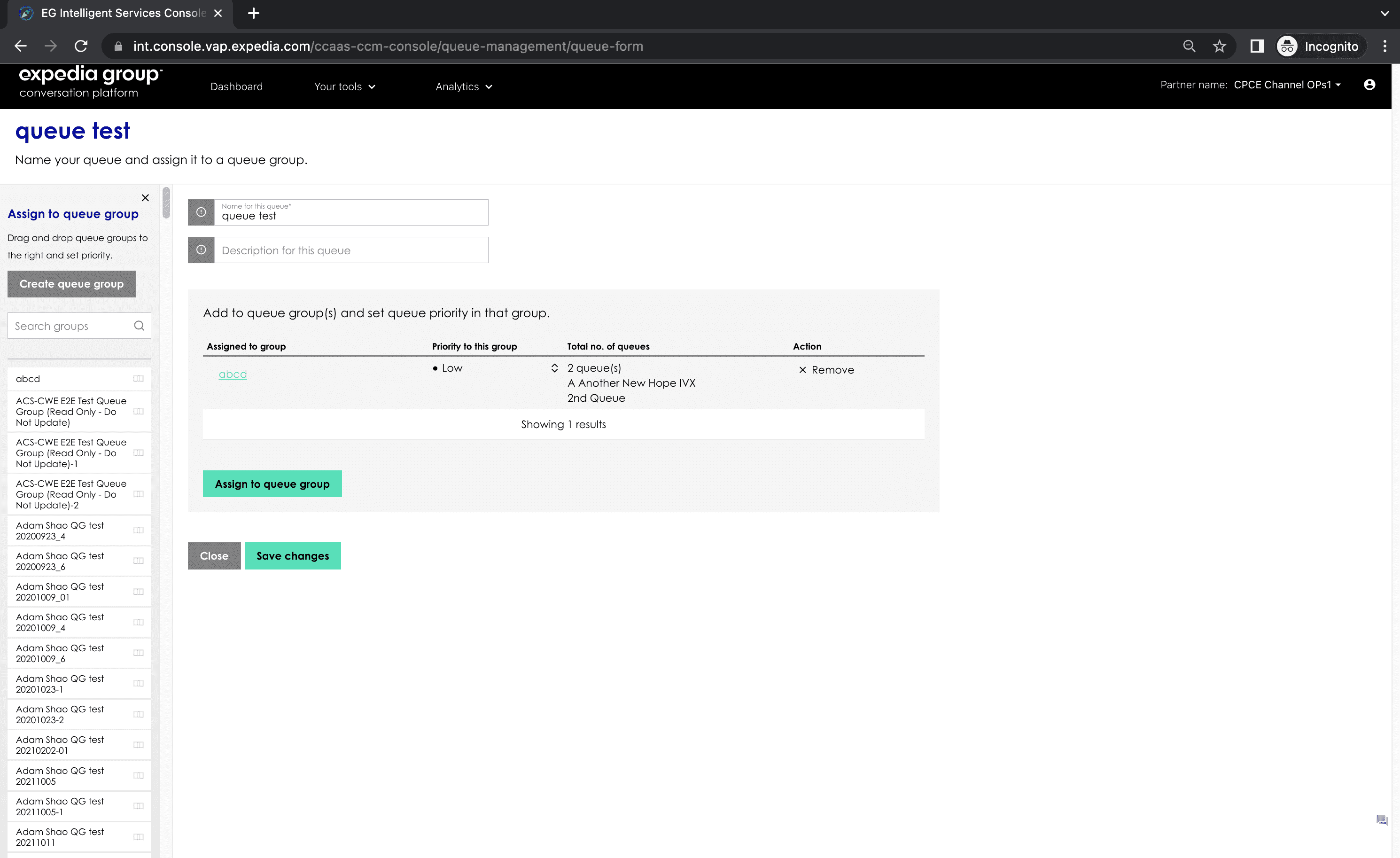
If you want to create a queue group while you are creating a queue:
- Click the Assign to queue group button to bring out the "Assign to queue group" sidebar.
- Click the Create queue group button in the sidebar.
-
As you type the queue group name, similar existing queue group names will appear in the dropdown menu:
- If you found there is an existing queue group that matches your requirements, just click on that queue group name and continue. The queue group will be selected for the queue to assign to.
- If you still want to create a new queue group, simply ignore the dropdown and continue. Then a new queue group will be created and selected for the queue to assign to.
 More on Creating a Queue Group
Editing an existing queue group
Click the Edit button at the right of Queue Group Table on a Table View.
Deleting an existing queue group
Click the Delete button at the right of Queue Group Table on a Table View.
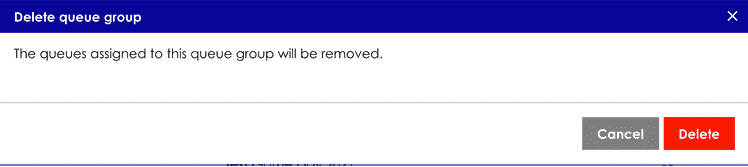
Note: when deleting a queue group that has queues assigned to, those queues will also be deleted.