Queue Treatment
Set up hold messages customers will hear while waiting
To access Queue treatment, select Contact Center Management > Routing, business hours, and queues > Queue treatment:
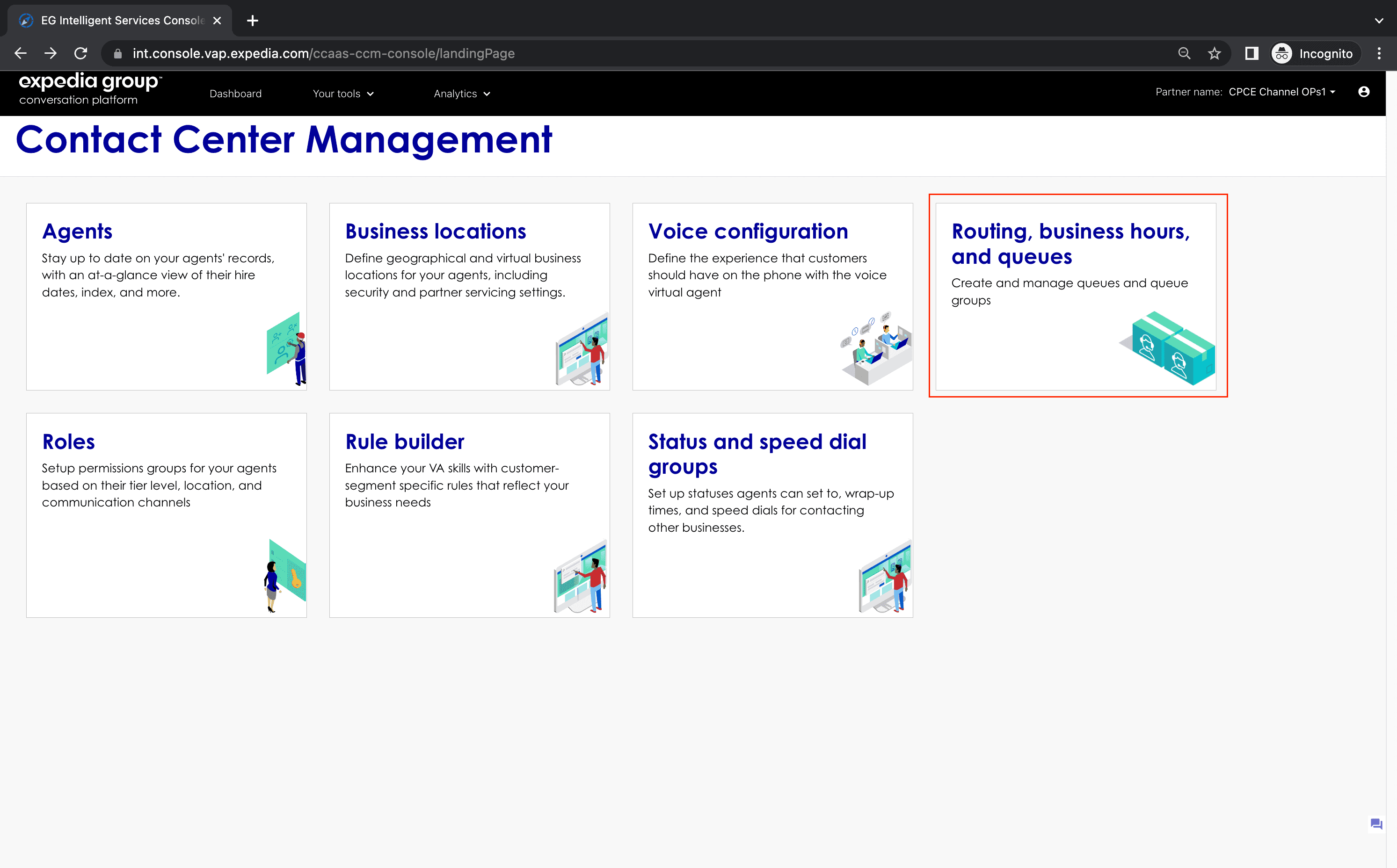
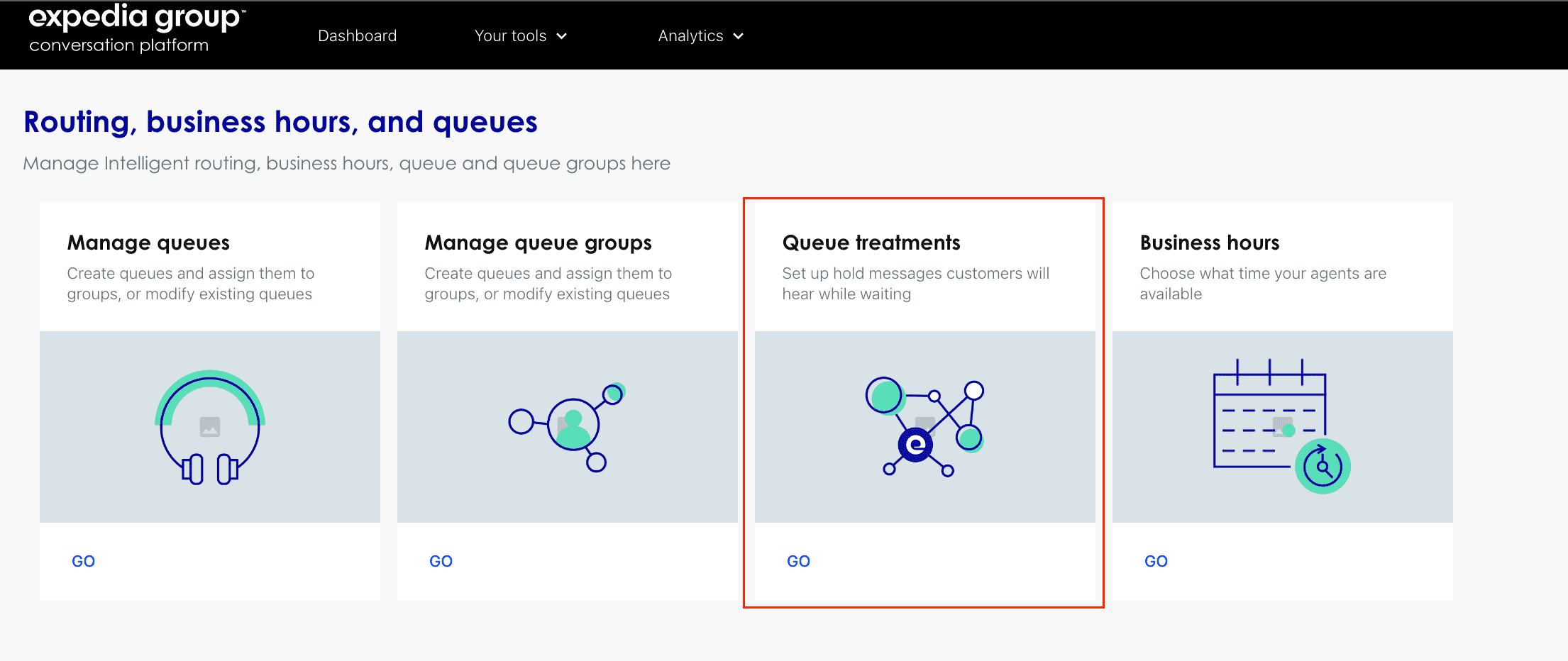
When you click the GO button on the Queue Treatment card, it will load the landing page.

Create a Queue treatment
- From the top right-hand side of the landing page, select Add.
- This will open the Add Queue treatment page:

- Complete all the required fields in the top section of the page: Name, Partner.
- Complete all the optional fields in the top section of the page: Business segments and languages.
- To enable hold messages, click the slider bar for Hold Message. Then search your contentId to see the message in each of your selected languages, before clicking 'Confirm'.
- To add a message, click Add. Next click on Add message. Then search your contentId to see the message in each of your selected languages, before clicking 'Confirm'.
-
To add music, click Add. Next click on Add music. Fill in a value in seconds, which will be how long the hold music will play.
- if you have one or more music actions in the queue, you will need to click the 'search music' component, and enter a contentId for the hold music.
- To add ICD Recommendation, click Add. Next click on Add ICD Recommendation. Fill in the field callback option number in seconds.
-
To add a loop, click Add, and fill out all the fields. Next click on Add loop. Fill in sequence number you wish to loop from and to.
- any steps that appear after a loop, will not be executed.
- Loops can't be applied to the first step in the queue, nor can they loop from an earlier step in the queue, to a later one. The Step from and Step to dropdowns will populate with the valid possible configurations.
- Click Save this will close the window and return you to the list view.

Field Definitions
- Name: allows user to specify friendly name for the configuration.
- Partner: user can select one partner that this rule can apply to.
- Business segments: business segments for the above selected partner.
- Languages: allows user to specify languages of the conversations that the configuration will apply to.
- Message: select the message to be played when the rule is triggered.
- Music: select the music to be played when the rule is triggered.
- ICD Recommendation: select the ICD Recommendation to be executed when the rule is triggered.
Update a queue treatment
- Find the Queue treatment you wish to edit in the Queue treatment list view.
- Click on the name in the row for that Queue treatment to open the details window.
- Once the page opens you can edit the fields you want to change
- To save the changes, click Save this will close the window and return you to the list view.
Delete a queue treatment
- Find the Queue treatment you wish to delete in the Queue treatment list view.
- Click on garbage bin icon on the row for that Queue treatment.
- Click Delete button on the delete confirmation dialogue box to finish the deletion.