Status and speed dial groups
Status and Speed Dial Groups enable users to set up statuses that agents can set to, wrap-up times, and speed dials for contacting other businesses.
To access Status and Speed Dial Groups, select Contact Center Management > Status and speed dial groups:

When you click the Status and speed dial groups card, it will load the landing page.

Feature
AAG consists of mainly 3 features:
- Status profile: Creates status that agents can set on their softphones. There are some statuses which cannot be selected by the agents those can only be selected by the system such as system issue etc. If no specific AAG is assigned to an agent, then the default profile will be applied.
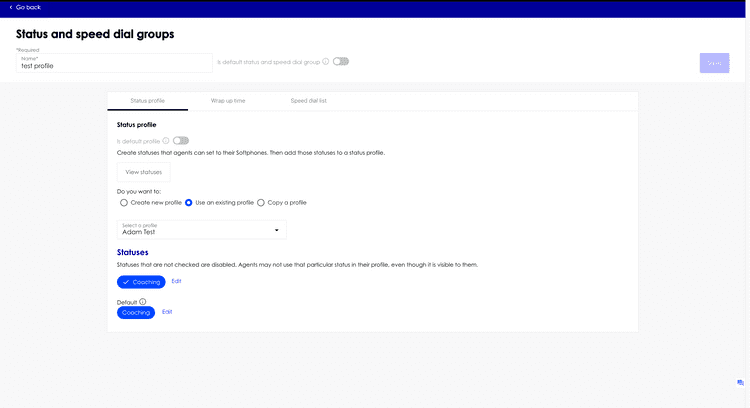
- Wrap up time: It consists of configuration related to softphones and is more about after the agent finishes call and the time he has between calls, time allowed to take notes etc. Following are toggles you can turn on and off under wrap up time:
- Agent can accept and reject calls: If turned on, configurer can configure the Max No Response Time and its default value is 30 seconds.
- Call notes: If turned on, agents can take notes during and after a call.
- Call disposition: If turned on, agents can select the type of call they had, like wrong number or customer answered
- Whisper announcements: If turned on, agents can select the Whisper announcements.

- Speed Dial List: Helps in creating speed dial list for external supplier.


Create a status and speed dial group
- From the top right-hand side of the landing page, select Add - Status and speed dial group.
- This will open the Add Status and speed dial group window:

- Complete the indicated fields in three sections status profile, wrap up time, and speed dial list. Note some fields are required (*).
- After completing the fields, click Save to return to the list view.

Create a status profile only
- From the top right-hand side of the landing page, select Add - Status profile only.
- This will open the Add Status Profile window:

- Complete the name field as it is required.
- Decide if you want to create a new profile or copy a file from an existing status profile.
- If you choose to create a new profile, click Create a new profile radio box, and click +Add status button. Next select the statuses you want to add to the status profile. Click UPDATE to confirm the selections.
- If you choose to copy a profile, click Copy a profile radio box. Next select a profile from the profile dropdown list.
- Click Save to return to the list view.

Create a speed dial list only
- From the top right-hand side of the landing page, select Add - Speed dial list only.
- This will open the Add Speed Dial List window:

- Complete the name field as it is required.
- Decide if you want to create a new speed dial list or copy a speed dial list.
- If you choose to create a new speed dial list, click Create a new speed dial list radio box, and click Add numbers and queues dropdown. Next select either Add new to add new phone number and queue, or Choose existing to select from existing phone numbers and queues.
- If you choose to copy a profile, click Copy a speed dial list radio box. Next select a speed dial list from the speed dial list dropdown list.
- Click Save to return to the list view.

Update a status and speed dial group
- Find the Status and Speed Dial Group you wish to edit in the status and speed dial group list view.
- Click on the name in the row for that Status and Speed Dial Group to open the details window.
- Once the page opens you can edit the fields for the selected group in three sections status profile, wrap up time, and speed dial list.
- To save the changes, click Save this will close the window and return you to the list view.
Update a status profile only
- Find the Status Profile you wish to edit in the status profile list view.
- Click on the name in the row for that Status Profile to open the details window.
- Once the page opens you can edit the fields for the selected status profile.
- To save the changes, click Save this will close the window and return you to the list view.
Update a speed dial list only
- Find the Speed Dial List you wish to edit in the speed dial list view.
- Click on the name in the row for that Speed Dial List to open the details window.
- Once the page opens you can edit the fields for the selected speed dial list.
- To save the changes, click Save this will close the window and return you to the list view.
Delete a status and speed dial group
- Find the Status and Speed Dial Group you wish to delete in the status and speed dial group list view.
- Click on garbage bin icon on the row for that Status and Speed Dial Group.
- Click Delete button on the delete confirmation dialogue box to finish the deletion.
Delete a status profile
- Find the Status Profile you wish to delete in the status profile list view.
- Click on garbage bin icon on the row for that Status Profile.
- Click Delete button on the delete confirmation dialogue box to finish the deletion.
Delete a speed dial list
- Find the Speed Dial List you wish to delete in the speed dial list view.
- Click on garbage bin icon on the row for that Speed Dial List.
- Click Delete button on the delete confirmation dialogue box to finish the deletion.
Add a status
- Open an existing status profile or create a new status profile or status and speed dial group.
- Click the View statuses button.

- Click the Add button to add a status.
- On the top of the right panel, a New Status displays. Change the name and select the toggles.

- Click Save button to save the new status
- After saved a new status, it will display the readonly RM ID for the created status.


Update a status
- Open an existing status profile or create a new status profile or status and speed dial group.
- Click the View statuses button.
- Find the status you wish to edit in the Statuses right panel
- Make the changes, and click Save button to save the changes
Delete a status
- Open an existing status profile or create a new status profile or status and speed dial group.
- Click the View statuses button.
- Find the status you wish to delete in the Statuses right panel
- Click Delete button, and next click Save button to delete the status
Add number or queue
- Open an existing speed dial list or create a new speed dial list or new status and speed dial group.
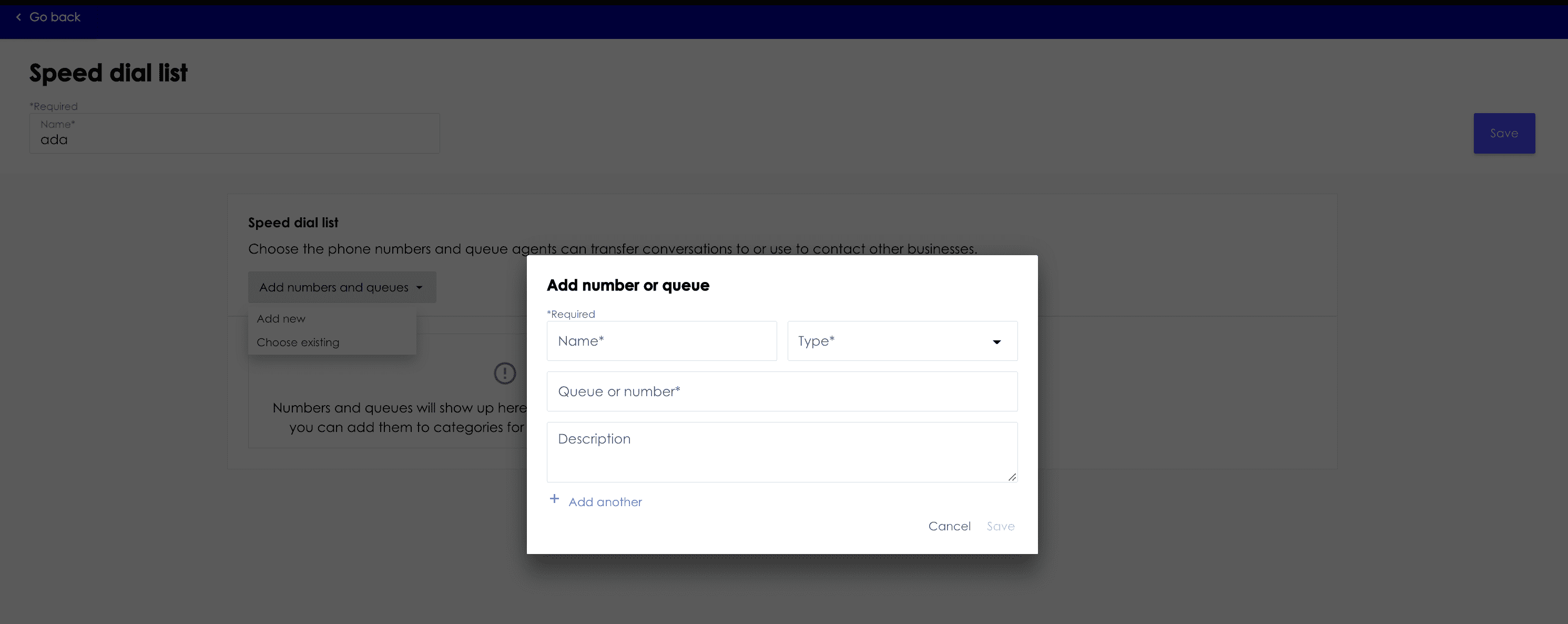
- Click the Add numbers and queues dropdown, and click Add new.

- Complete the indicated fields. Note that some fields are required (*).
- Click Save to save the number or queue, or Click Add another to create more number or queue.
Update number or queue
- Open an existing speed dial list.
- Click on the row for that Number of Queue to open the details window.
- Make changes to the fields.
- Click Save to save the change.
Remove number or queue from speed dial list
- Open an existing speed dial list.
- Find the Number of Queue in the list view.
- Click the garbage bin icon on the row for that Number of Queue to remove the number or queue from the speed dial list.
- Click Save to save the speed dial list.
Set a default status and speed dial group
A user can setup a default Status and Speed Dial Group so that a default Status and Speed Dial Group is already easily available and assigned if there are no other Status and Speed Dial Groups assigned to the agent. To provide maximum flexibility, this setting is optional, so users can choose to turn it on and have default status and speed group available on or keep it off if there is not a need for it.
Note: there is only one default Status and Speed Dial Group allowed. If you have an existing group already set to default and you want to change the default to another group, you need to turn off the default on the existing group, and then set the default on the other group.
To set a default Status and Speed Dial Group
- Ensure there is no existing Status and Speed Dial Group that is already set to default, or turn the default off on the existing Status and Speed Dial Group
- Open an existing Status and Speed Dial Group or create a new Status and Speed Dial Group.
- Move the Is default status and speed dial group slider to on.

- Click Save to save the Status and Speed Dial Group
- The Status and Speed Dial Group list view show the default group with a checkmark.


Set a default agent presence profile
A user can setup a default Agent Presence Profile so that a default Agent Presence Profile is already easily available and assigned if there are no other Agent Presence Profile assigned to agents.
Note: there is only one default Agent Presence Profile allowed. If you have an existing profile already set to default and you want to change the default to another profile, you will need to turn off the default on the existing profile, and then immediately set the default on the other profile to avoid the situation that there is no default profile in the interim.
To set a default Agent Presence Profile
- Ensure there is no existing Agent Presence Profile that is set to default, or turn the default off on the existing profile.
- Open an existing Agent Presence Profile, create a standalone Agent Presence Profile, or create a new Status and Speed Dial Group.
- On the Agent Presence Profile detail page, move the Is default profile slider to on.

- Click Save to save the Agent Presence Profile.
- The Agent Presence Profile list view will show the default profile with a checkmark.


Set unselectable statuses
When you create a Status and Speed Dial Group or standalone Agent Presence Profile, you can select which statuses are available for the profile. By default, all the statuses are selectable, which means agents can select those statuses in Softphone and Voyager Next. However, there are cases that some statuses are set by the software system and partner administrator doesn't want these statuses to be selectable by the agents. In that case, partner administrator can set these statuses as unselectable. To do that:
- Open an existing Agent Presence Profile, create a standalone Agent Presence Profile, or create a new Status and Speed Dial Group.
- Click the statuses that you want to be unselectable. You will notice the checkbox will disappear, and status box's color change from blue to white.
- If you want to make an unselectable to selectable, click the status. You will notice the checkbox will appear, and status box's color change from white to blue.
- Click Save


Upload AAG mappings
Click Upload AAG Mappings button in the top right of AAG list view to upload the AAG and queue group mappings csv file to trigger backend processing to bulk assign AAG to agents.

On this page
-
- Feature
- Create a status and speed dial group
- Create a status profile only
- Create a speed dial list only
- Update a status and speed dial group
- Update a status profile only
- Update a speed dial list only
- Delete a status and speed dial group
- Delete a status profile
- Delete a speed dial list
- Add a status
- Update a status
- Delete a status
- Add number or queue
- Update number or queue
- Remove number or queue from speed dial list
- Set a default status and speed dial group
- Set a default agent presence profile
- Set unselectable statuses
- Upload AAG mappings