Hours of Operation
Hours of Operation configuration allows a user to define the parameters for how conversations should be assigned in the event that an agent endpoint is not available. Configuration includes, what can be done in hours and out of hours, as well as supporting options to play message and disconnect, or transfer off platform.
To access Hours of Operation, select Contact Center Management > Routing, business hours, and queues > Business hours:
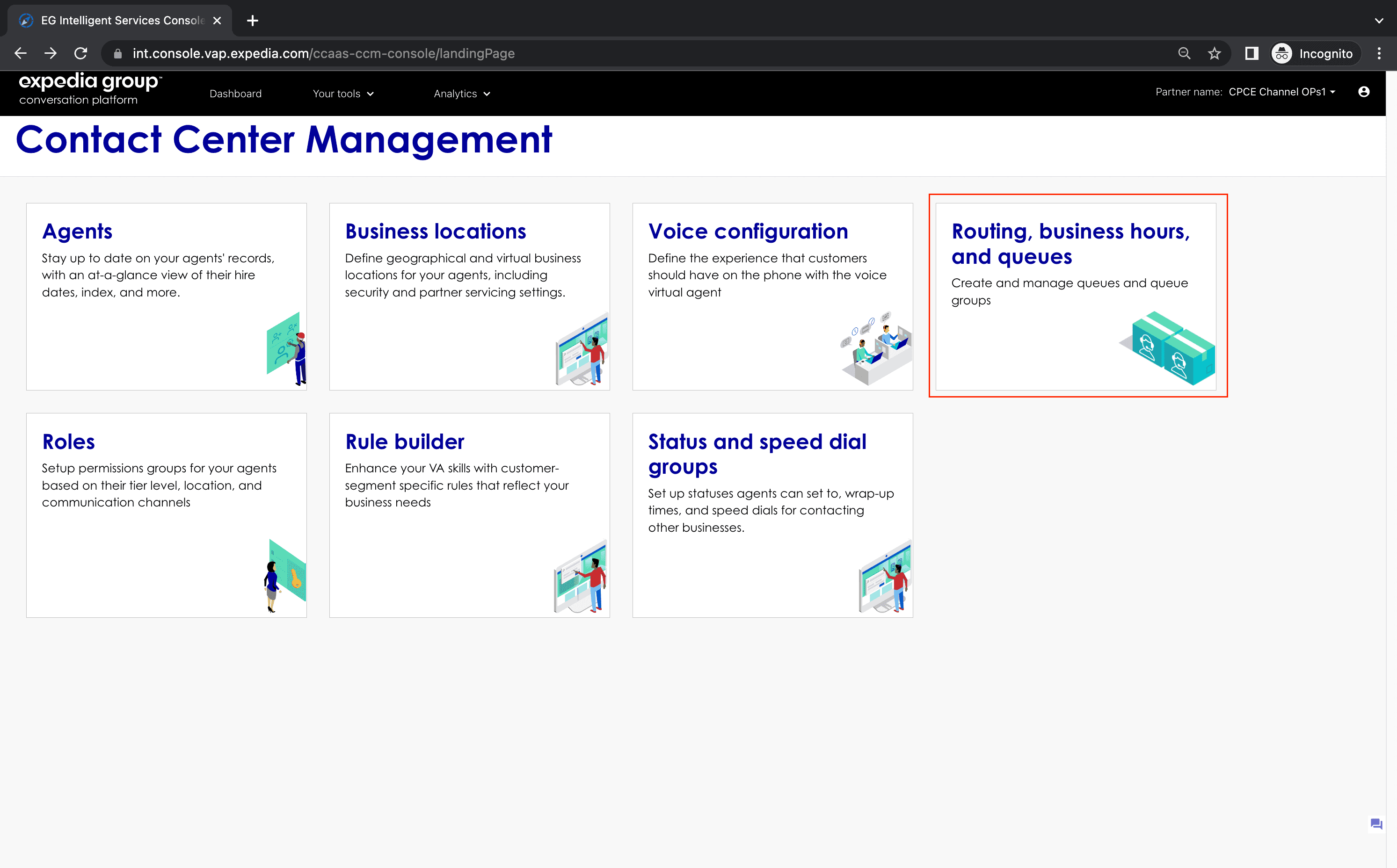

When you click the GO button on the Business hours card, it will load the landing page.

Create an Hours of Operation
- From the top right-hand side of the landing page, select Add.
- This will open the Add Hours of Operation page:

- Complete all the fields in the top section of the page first: Name, Time zone, Partner, Business segment, and Language.
Note: all theses fields are required (*). After these are filled out, the hours of operations fields below become editable. - To add an hours of operation for Available and closed hours, fill out all the fields under Available and closed hours. All the required fields have a (*) after the name.
- To add conditions to the configuration, click Add conditions. Next it will pop up the conditions panel. Add the conditions you want to apply to the configuration and click Save.

- To select message to play for the hours of operation, click select message to play field. Next, enter the exact Content Id and click Search. If the content id is found, it will display the message text. Click Select to choose that message.
Note: the search of the message is based on content id, partner, channel and language.

- To add another hours of operation for Available and closed hours, click Add Hours button.
- To add an hours of operation for Holiday hours and exceptions, click Holiday hours and exceptions, and fill out all the fields.
- Click Save this will close the window and return you to the list view.

Field Definitions
- Name: allows user to specify friendly name for the configuration.
- Partner: user can select one partner that this rule can apply to.
- Business segment: allows user to specify business segment for the configuration.
- Language: allows user to specify language of the conversations that the configuration will apply to.
- Time zone: allows user to select a time zone appropriate to the configuration.
- Conditions: add business object and value pairs to filter the hours of operation based on those conditions.
- Channel: allows user to specify channel for that particular rule.
- Days: allows user to select from All Days(Mon-Sun), Weekdays(Mon-Fri), Weekends(Sat-Sun), individual days or All Other Times(Except the range you specified already in other configures).
- From/To: start time and end time of time range.
- Message: select the message to be played in when rule is triggered. You can create or update message in the Content Management of CP Console.
- Action: select action types from Connect, Transfer and Disconnect, and followup action for each action type.
- Start date: select start date of day range of holiday hours or exceptions.
- End date: select end date of day range of holiday hours or exceptions.
- Reasons for exception: specify the reasons for holidays or exceptions.
Search Business Hours
To search a Business Hours just type the name in Search field.

Update an Hours of Operation
- Find the Hours of Operation you wish to edit in the Hours of Operation list view.
- Click on the name in the row for that Hours of Operation to open the details window.
- Once the page opens you can edit the fields you want to change
- To save the changes, click Save this will close the window and return you to the list view.


Delete an Hours of Operation
- Find the Hours of Operation you wish to delete in the Hours of Operation list view.
- Click on garbage bin icon on the row for that Hours of Operation.
- Click Delete button on the delete confirmation dialogue box to finish the deletion.