Recording & Transcription

As customers engage with the platform through your voice channel, CCaaS provides you the ability to record conversation and transcribe those conversations. Rules around recording and storage of transcripts vary based on customer type and location, so you may need to give customers the chance to opt in or out. The resource manager configurations provide options for these types of scenarios.
The entire architecture is modeled as a workflow. The workflow execution engine at its heart manages the flow of voice data among different workers for processing. Communication between the workflow and the workers is asynchronous, and it’s performed reliably over the platform eventing framework.
What is a worker?
A worker is a service that processes or performs a single task such as recording, transcription, or redaction. You may write your own worker if you’d like.
Accessing voice records
All voice conversation recordings are stored in the platform as a sub-resource to the conversation resource. Each voice conversation can have multiple legs, which can be accessed via API end points exposed by the resource manager or through the Analytics interface in Console.
There are two places to access voice records: Resource Manager (RM) and VAP Analytics Console. Accessing via Resource Manager endpoints: Use RM to fetch a list of all recordings for a conversation. Refer to GET recording list request for the full schema of the recording list request/response. You may also fetch a particular recording for a conversation; refer to GET recording by id request for the full schema of the recording request/response.
Accessing via VAP Analytics Console playback: Supervisors and quality analysts have access to the analytics console. These users can access and play back voice conversations with an audio player embedded in the console. The Analytics Console can be accessed through the VAP Console. Analytics and Reporting can also be accessed via the Conversation Platform Console.
First, click the Reporting card as seen below.
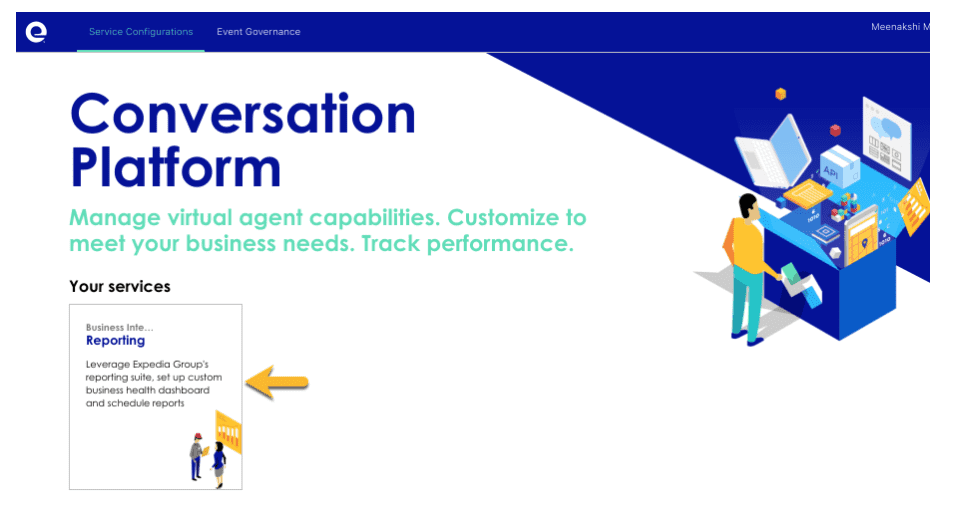
From there, navigate to Reports → Out of Box Reports → CCV → Agent Details Dashboard. This dashboard shows all the voice conversations and lets those logged in with an appropriate role review an agent.

After clicking on Review button, you will be taken to the Playback page where all the voice recordings for a particular conversation can be accessed.

Playback
Playback lets you serve the voice recording for a conversation for internal quality and monitoring. Below is the streaming API to plug into the web audio tag. This API is protected by role-based access control (RBAC) and business location context. Currently, it is consumed in analytics console for playback. Refer to GET recording playback request for the full schema of the playback request.
Configurations
- Voice recording transcription: the voice recording system stores the current recording customer calls with EG. These recordings can be transcribed and used to identify customer intent or support on-call agents. This configuration lets you choose whether or not you would like to transcribe the voice conversation.
- Redaction: voice conversations are redacted per PCI compliance to safeguard sensitive information such as credit card data. You may write your own scripts to redact content from voice conversations.
- Partner-specific action on recordings: if you would like to perform operations on recordings specific to your use-case, send us a request.
- Retention Period: your voice recordings are saved in the platform for a default retention period of 120 days. You can configure the number of days you’d like to retain conversations in the platform, after which they will will be deleted along with their trace data.
- Opt-in / Opt-out: for an incoming customer call, you can configure if the voice call will be recorded or not based on user input. This is exposed as OPT IN/OPT OUT configurations where a calling customer can "opt-in" to get the call recorded or "opt-out".
Future enhancements
- You’ll be able to skip or use certain steps of the default recording pipeline like redaction, transcription or sentiment analysis.
- You’ll be able to store recordings in your respective storage location(s).
- You’ll be able to configure notifications and events sent when different stages of the pipeline are completed. For example, you may want to send an event that performs further processing when transcription is completed.