Analytics and Reporting
Analytics and Reporting is your one-stop destination for accessing, creating, and sharing reports. You can take advantage of the following capabilities that it provides:
- Use out-of-the-box "default reports" and dashboards
- Build and customize your own reports
- Configure custom reporting alerts and notifications
- Easily explore your data at scale with ad hoc analysis
- Link data directly into your own Excel workbooks for additional offline analysis
- Download data in a variety of formats
- Save your own customized versions of reports for later easy access
How to Access the Analytics Console
- Navigate to the Conversation Platform Console based on the environment you want to access:
- Sandbox: https://sandbox.console.vap.expedia.com
- Production: https://console.vap.expedia.com

- Click the Sign in button to display the SIGN IN page.

- Enter your username and password, and click the Sign in button.
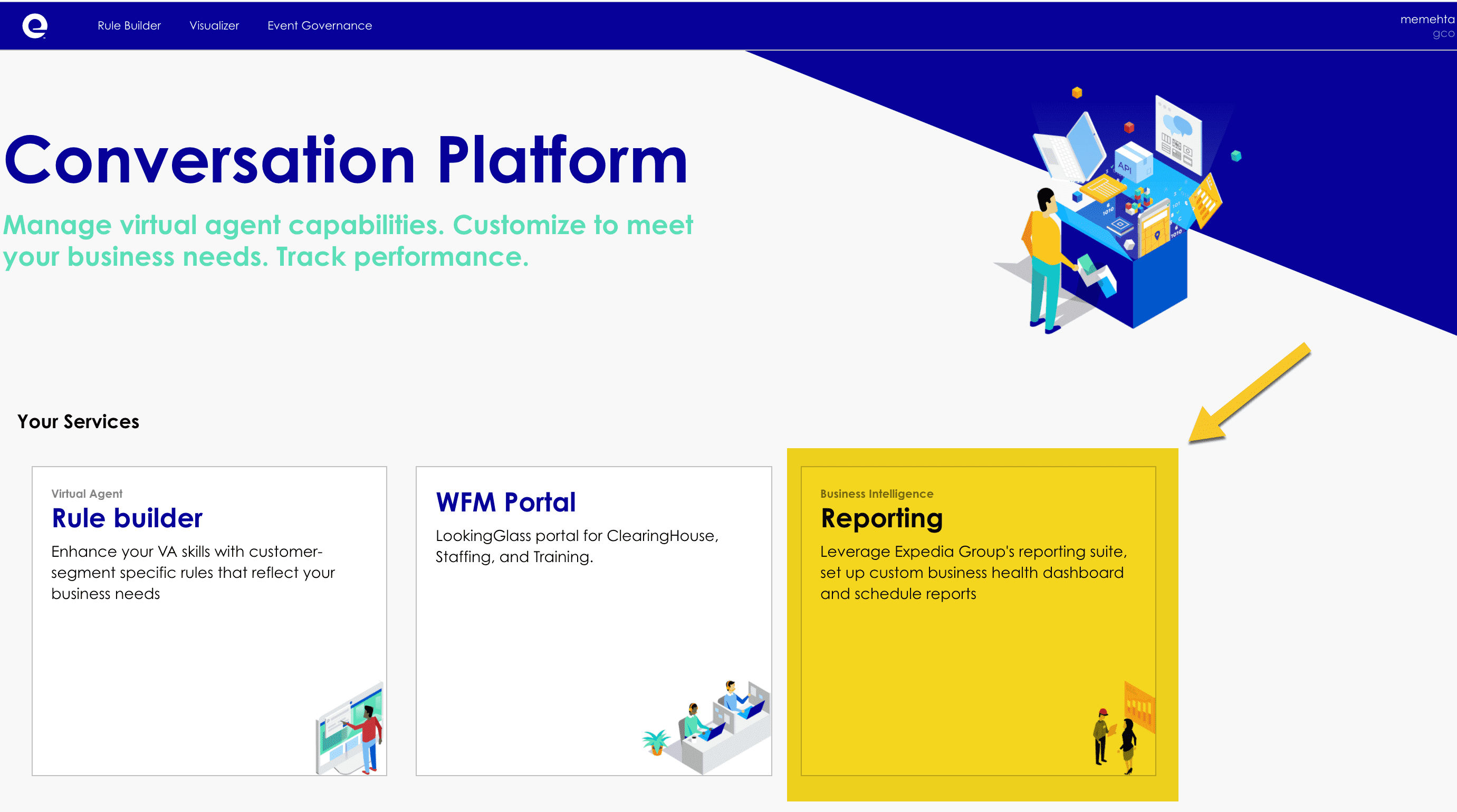
- After successfully signing in, you will see the Conversation Platform Console dashboard where you can view and configure Conversation Platform services.

The top right section of the header displays the currently signed-in user and the name of the partner the user belongs to. This header section also provides a way for you to sign out.
- Click the Reporting card to access the Analytics Console:
The Analytics and Reporting Console opens with the default dashboard loaded on the homepage.

Trust and Partner Switch
Analytics Console now supports Trust and Partner Switch. From the trusting partners displayed in the dropdown menu, you can choose the partner you want to switch to as the context for the Analytics Console. By default, the partner you belong to will be selected.

Default Behaviour
When your own partner is selected in the dropdown list, the Analytics Console will behave as follows:
- Out of Box Reports - All partner type Out of Box reports of your and your trusting partners will be available with data for your partner and all the trusting partners.
- Shared Reports - Your partner and trusting partners reports with data for your partner and all the trusting partners.
- Folder Management - If your partner has given you Manage access then you will have folder management on your partners space only.
- Ad-hoc Analysis - If your partner and your trusting partner has given you Explore or Analyse permission access then you can explore partner type models of your and your trusting partners. The models will allow data access to your partner and all the trusting partners.
- Personal Reports - Your personal reports with data for your partner and all the trusting partners.
- All Users Reports - Users reports of your partner (if you have Share or Manage permission) and all trusting partners (who have given your partner Share or Manage permission) with data for your partner and all the trusting partners.
Partner Switch
If you have selected some other trusting partner from the dropdown list, the Analytics Console will behave as follows:
- Out of Box Reports - Selected partners’ partner type Out of Box reports with selected parters’ data.
- Shared Reports - Selected partners’ reports with selected parters’ data.
- Folder Management and Ad-hoc Analysis - Not accessible.
- Personal Reports - Empty.
- All Users Reports - If the selected partner has given you permission (Share or Manage) then this space will have selected partners' users reports with selected parters’ data.